Audit Log
Path: /audit
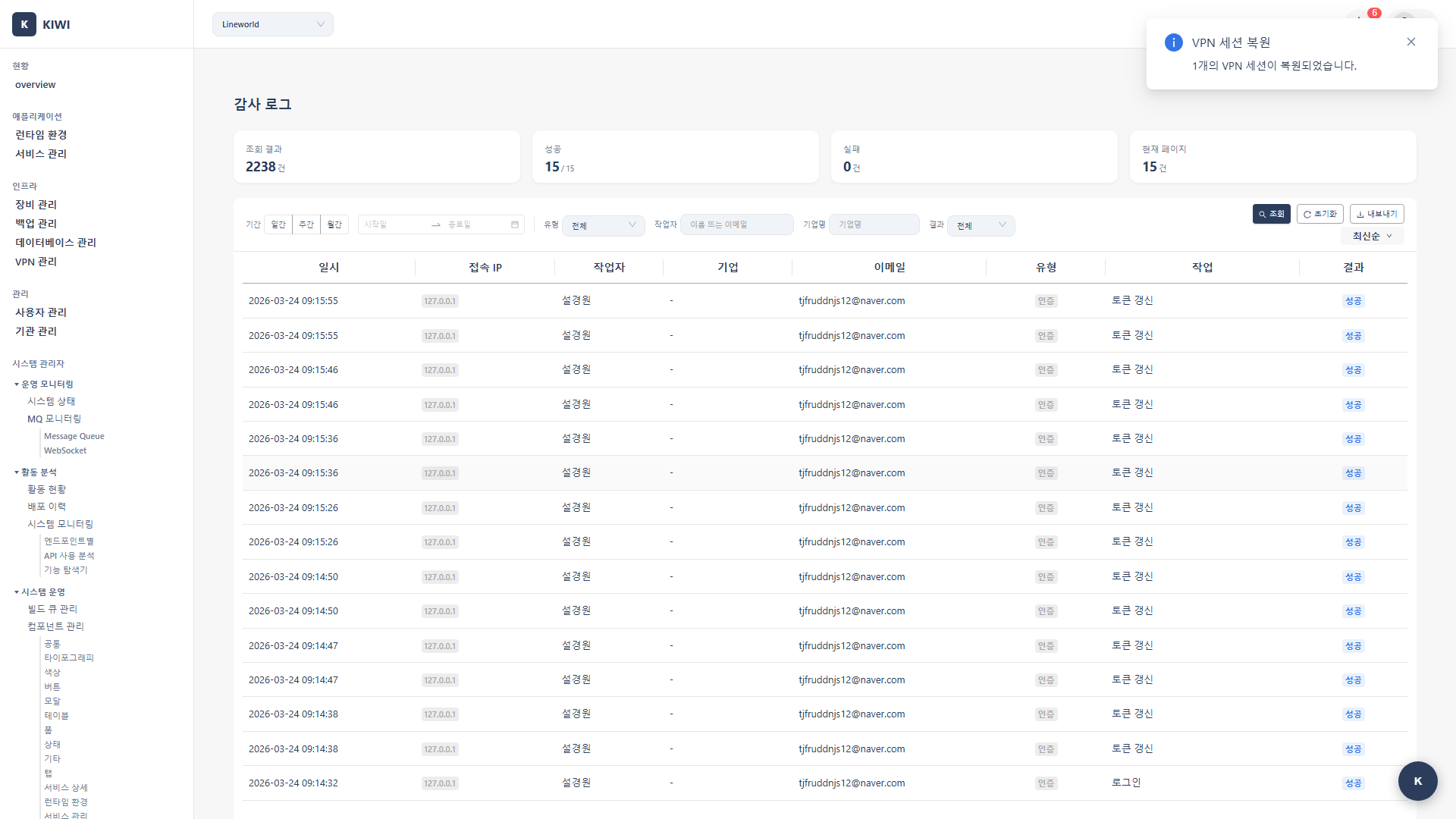
A page for recording and viewing all important activities in the system. You can see at a glance who did what and when, making it essential for security audits and troubleshooting.
Audit logs are a critical tool for your organization's security and compliance:
- Security Monitoring: Detect abnormal login attempts or unauthorized access.
- Troubleshooting: Track and analyze causes when service failures occur
- Compliance: Meet legal requirements such as privacy laws and information security regulations.
- Accountability: Clearly record who made what changes.
If you cannot access this page, please request permission from your organization manager. Audit log viewing is a restricted permission for security reasons.
Key Features
Understanding Log Types
KIWI classifies and records system-wide activities into 7 categories. Learn what activities are recorded for each type:
- auth: Authentication. Example activities: Login, logout, password changes.
- device: Device Management. Example activities: Device registration, modification, deletion.
- infra: Infrastructure. Example activities: Runtime environment registration, configuration changes.
- service: Service Management. Example activities: Build, deploy, rollback, configuration changes.
- backup: Backup/Recovery. Example activities: Backup creation, restore execution.
- database: Database. Example activities: DB connection, synchronization.
- user: User Management. Example activities: User invitation, role changes (Manager only).
When conducting security audits, it's effective to first check for abnormal login attempts using the auth type, then review major service change history using the service type.
Log Export
You can export audit logs in various formats. Choose the appropriate format based on your needs:
- CSV: Best for spreadsheet analysis. Use for data analysis in Excel, filtering, and creating pivot tables.
- JSON: Best for programmatic processing. Use for automation script integration and external system integration.
- PDF: Best for documentation/reports. Use for executive reports and audit evidence submission.
UI Layout
Information Available in the Log List
The log list is designed to show key information at a glance:
- Time: Event occurrence time. Example: 2024-03-01 10:30:00.
- Performer: User who performed the action. Example: admin@company.com.
- Type: Action type. Example: service, auth, device.
- Operation: Specific operation. Example: create, delete, update.
- Target: Target resource. Example: my-service, server-01.
- Result: Operation result. Example: success, failure, pending.
Additional information available when clicking each log entry:
- Request IP: IP address where the request originated (useful for security analysis)
- Details: Detailed request parameters.
- Before/After Data: Compare previous and new values when data was changed.
Using the Filter Panel
You can combine various filters for efficient log searching:
- Period: Specify range with start~end dates.
- Type: View only specific log types (multiple selection available)
- Result: Select from success, failure, or pending.
- User: View only specific user's activities.
"View only failed deployment operations in the last week" - Set the period to the last 7 days, type to service, and result to failure.
How to Use
Viewing Logs
The most basic way to view logs:
- Navigate to the [Audit Log] page from the left menu
- Recent logs are displayed by default in reverse chronological order.
- Scroll down or use pagination at the bottom to view more logs.
Filtering by Period
To view logs only from a specific period:
- Find the Period section in the filter panel at the top of the screen
- Click Start Date and select a date from the calendar
- Click End Date and select a date from the calendar
- The filter is automatically applied, showing only logs from that period
Frequently used periods (Today, Last 7 days, This month) can be quickly selected using predefined buttons.
Filtering by Type
To view only specific types of activities:
- Click the Type dropdown in the filter panel
- Select the types you want to view (multiple selection available):
- auth, device, infra, service, backup, database, user.
- Click outside the dropdown after selection to apply the filter.
Filtering by Result
To view only successful or failed operations:
- Click the Result dropdown in the filter panel
- Select the desired result status:
- success: Operation completed normally. Check when verifying a specific operation was performed.
- failure: Operation failed. Check when analyzing issues or detecting security problems.
- pending: Operation in progress. Check when monitoring long-waiting operations.
Viewing Log Details
To view detailed information about a specific log:
- Find the log you want to examine in the log list
- Click the Details button on that row or click the row itself
- A detail information panel opens on the right side of the screen
- You can view the following information:
- Request IP: See where the request came from
- Request Details: Specific request parameters.
- Before/After Data: Compare how data changed (when applicable)
- Error Message: View failure reason (for failed operations)
Exporting Logs
To save logs to a file for audit evidence or analysis:
- First, apply filters to set the range of logs to export
- Click the Export button at the top of the screen
- Select the export format:
- CSV: For analysis in Excel and other spreadsheets.
- JSON: For automated programmatic processing.
- PDF: For reports and evidence documentation.
- Configure export options:
- Select columns to include (you can exclude unnecessary information)
- Specify date format (YYYY-MM-DD, etc.)
- Click the Export button to download the file.
Exported log files may contain personal information such as user emails and IP addresses. Handle files carefully and securely delete them when no longer needed.
Log Details
Understanding Log Entry Structure
Each audit log is stored in the following JSON structure. Reference this for API integration or automation tasks:
{
  "timestamp": "2024-03-01T10:30:00Z",
  "user": "admin@company.com",
  "action_type": "service",
  "action_code": "service:deploy",
  "resource": "my-service",
  "result": "success",
  "ip_address": "192.168.1.100",
  "details": {
    "image": "harbor.company.com/library/my-service:v1.0.0",
    "namespace": "production",
    "replicas": 3
  }
}
Key Action Code Reference
Frequently used action codes organized by category:
Authentication Related
auth:login- User loginauth:logout- User logout
Device Related
device:create- Device registration.device:update- Device information modification.device:delete- Device deletion.
Infrastructure Related
infra:create- Runtime environment registration.infra:update- Runtime environment configuration modification.infra:delete- Runtime environment deletion.
Service Related
service:build- Service build execution.service:deploy- Service deployment execution.service:rollback- Rollback to previous version.
Backup Related
backup:create- Backup creation.backup:restore- Restore from backupbackup:delete- Backup deletion.
Retention Policy
Audit logs are retained for different periods depending on type:
- Authentication Logs (auth): Retained for 365 days (1 year). Meets security audit requirements.
- General Logs: Retained for 90 days (3 months). Sufficient for operational analysis.
- With Archive Settings: Retained indefinitely. May incur additional storage costs.
According to privacy laws and information security regulations, certain logs must comply with statutory retention periods. Consult with your organization's legal or information security team to set appropriate retention policies.
Glossary
Key terms explained for those new to audit logs:
- Audit Log: A chronological record of all important activities in the system. Tracks "who, when, what" was done.
- Action Code: A code identifying the type of operation performed. Structured as "type:operation" like
service:deploy. - Timestamp: The exact time an event occurred. Recorded in ISO 8601 format (e.g., 2024-03-01T10:30:00Z).
- IP Address: The network location where the request originated. Used for detecting abnormal access.
Important Notes
- Cannot Modify/Delete: Audit logs are automatically recorded by the system for integrity and cannot be modified or deleted by users.
- Export Time: Exporting large amounts of logs may take time depending on data volume
- Privacy Protection: Exported files may contain personal information, so handle them carefully.
- Auto-Deletion: Logs exceeding the retention period are automatically deleted. Export in advance if long-term retention is needed.