Docker Runtime Registration
Connect a Docker or Podman runtime to the KIWI platform to manage containers. Once you register a runtime, you can easily manage containers through the web UI.
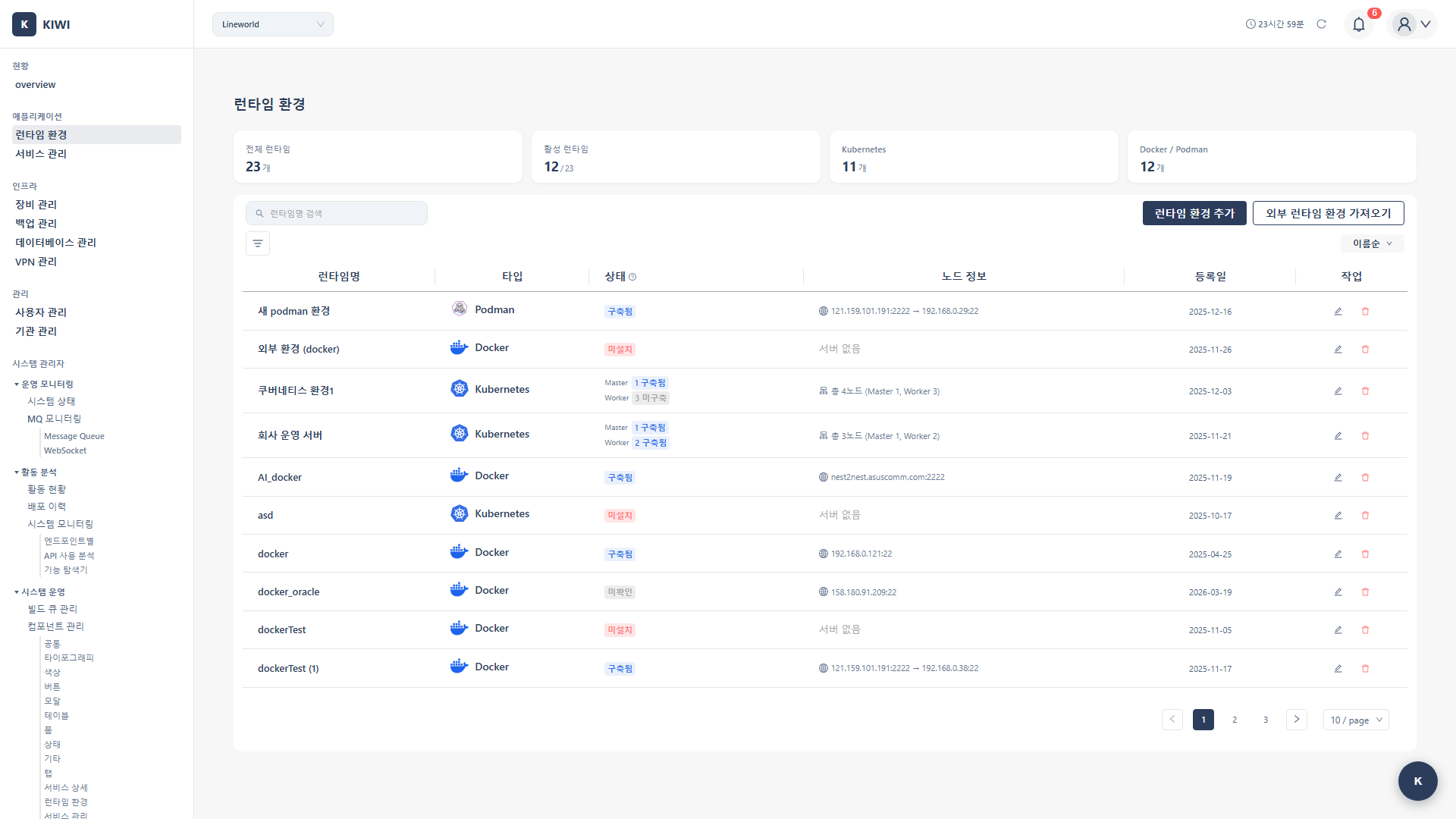
Why Register a Docker Runtime?
When you register a Docker runtime, you can perform various tasks through the web UI without terminal commands:
- View container status at a glance .
- Start/stop/restart containers with a single click .
- Check real-time logs and track issues .
- Access container shells directly .
Both Docker and Podman are container runtimes. Podman is a more secure alternative that is compatible with Docker but runs without a daemon. KIWI supports both.
Prerequisites
The following conditions must be met before registering a runtime:
- The target device must be registered in KIWI first
- If you haven't registered it yet, follow the Device Registration guide first
- Docker or Podman must be installed on that device .
- The account used for SSH must have permission to execute Docker commands
After connecting to the server via SSH, you can check if Docker is installed with the following command:
docker --version
If version information is displayed, Docker is installed.
Registration Procedure
Step 1: Navigate to Runtime Environment Page
- Click [Runtime Environment] page in the left menu
- Click the Add Docker Runtime button at the top
Step 2: Enter Runtime Information
Enter the following information in the runtime registration modal:
-
Name: An identifier to distinguish the runtime
- Example:
dev-docker,prod-container-host - Including environment (dev/prod) and purpose makes management easier .
- Example:
-
Device: Select the device where Docker is installed .
- The dropdown shows the list of registered devices .
- If your desired device is not listed, complete Device Registration first
-
Type: Select the installed runtime type
-
Docker: The most widely used container runtime. Recommended for general environments.
-
Podman: Security-enhanced runtime that operates without a daemon. Recommended for security-focused environments.
Step 3: Test Connection
- Click the Test Connection button .
- If the connection is successful, Docker version information is displayed:
Docker version 24.0.7
When version information is displayed, it means KIWI can communicate normally with Docker on that server.
Step 4: Save
Once the connection test succeeds, click the Save button to register the runtime.
Runtime Features
The following features are available on registered Docker runtimes:
- Image list: View the list of Docker images stored on that host
- Container management: Start, stop, and restart running containers .
- Log viewing: View real-time container logs .
- Shell access: Connect to the inside of a container and execute commands .
When a container has issues, the log viewing feature lets you identify the cause immediately without terminal access. Real-time log streaming is also supported.
Troubleshooting
Docker Access Denied (permission denied)
permission denied while trying to connect to Docker
Cause: The SSH user does not have permission to access the Docker socket.
Solution:
- Add the user to the docker group
sudo usermod -aG docker $USER
- Apply changes (choose one)
# Option 1: Apply immediately in current session
newgrp docker

# Option 2: Log out and log back in
- Verify permissions are applied .
docker ps
Adding a user to the docker group grants that user root-level privileges. In production environments, only grant permissions to users who absolutely need them.
Docker Not Installed (command not found)
docker: command not found
Cause: Docker is not installed on the target server.
Solution:
# Docker official install script (Ubuntu/Debian/CentOS)
curl -fsSL https://get.docker.com | sh

# Start Docker service after installation
sudo systemctl start docker

# Enable auto-start on boot
sudo systemctl enable docker

# Verify installation
docker --version
Next Steps
Docker runtime registration is complete! You're now ready to register and deploy services:
- Service Registration - Register services to deploy
- Docker Deployment - Deploy services as Docker containers .