HPA Auto Scaling
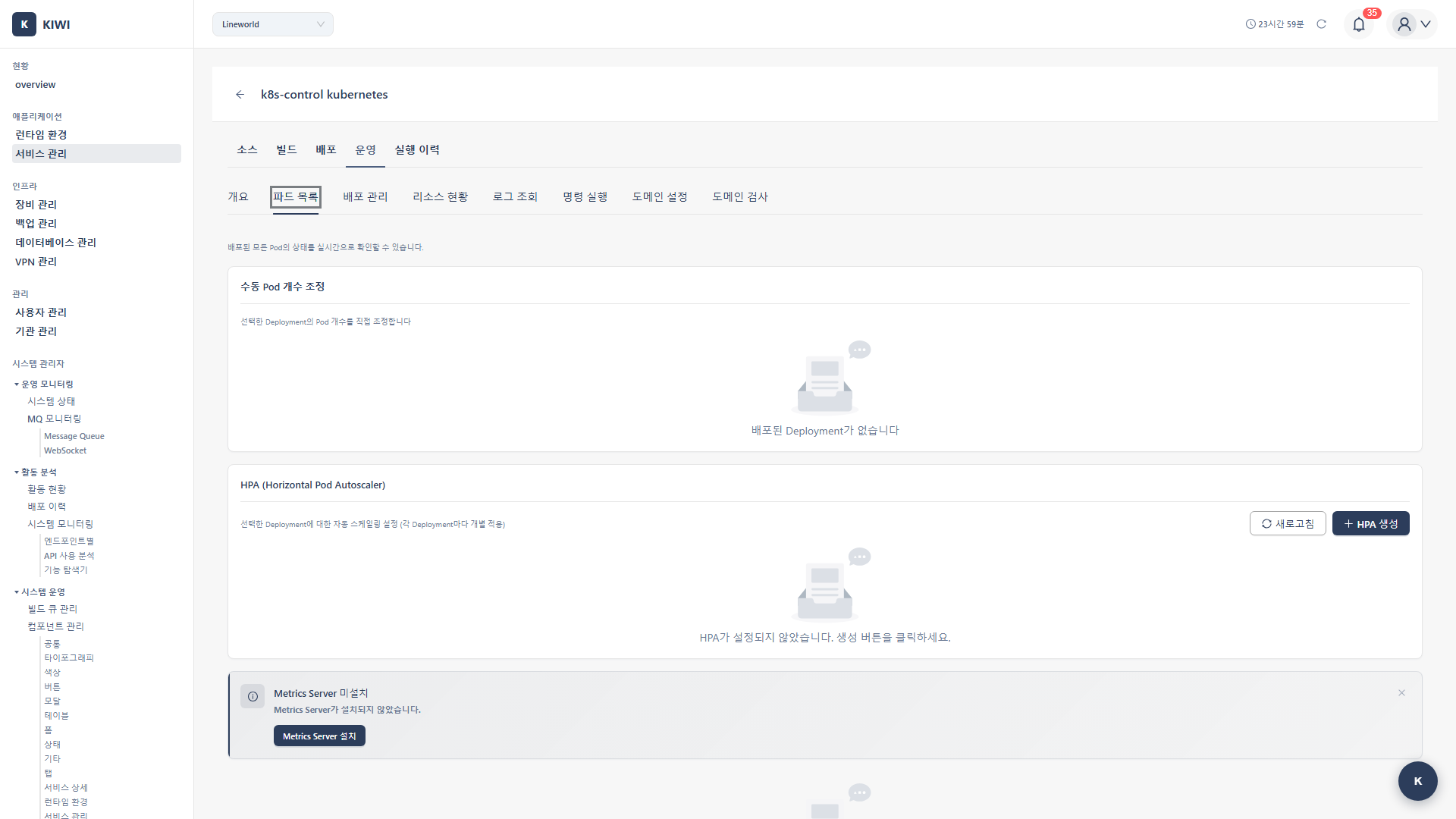
Manually adjusting scale every time traffic surges is tedious and risky. With HPA (Horizontal Pod Autoscaler), Pods automatically scale up or down based on service load.
- 24/7 automatic response: Handles traffic surges even at midnight automatically.
- Cost savings: Reduces Pods when traffic is low to save resources.
- Improved stability: Prevents manual operation mistakes.
What is HPA?
HPA (Horizontal Pod Autoscaler) is a core Kubernetes feature that automatically adjusts the number of Pods based on CPU, memory usage, or custom metrics. It's called "horizontal" scaling because it increases the "number" of Pods (vertical scaling increases Pod resources).
How It Works
[Metrics Server] → [HPA Controller] → [Deployment Scale]
        ↓                   ↓                    ↓
   Collect metrics    Compare targets      Adjust Pod count
Supported Metrics
HPA can scale based on various metrics.
-
CPU Usage (Most Common): Scales based on Pod CPU usage. Suitable for compute-intensive workloads like web servers and API servers.
-
Memory Usage: Scales based on Pod memory usage. Suitable for memory-intensive workloads like caching and data processing.
-
Custom Metrics (Advanced): Scales based on metrics collected from Prometheus, etc. Used when scaling based on business logic like requests per second or message queue length is needed.
For most web services, starting with CPU usage is a good choice. If your workload is memory-intensive, add memory usage as well.
Prerequisites
- Metrics Server must be installed on the Kubernetes cluster.
- Service must be deployed on K8s
Permission Notice: If you cannot access this feature, please request permission from your organization manager.
If metrics server is not installed, refer to the Metrics Server Installation guide.
HPA Configuration
Step 1: Open Service Deployment Settings
- Click the target service on the [Service Management] page
- Click the Deploy tab
- Click the Deployment Settings or HPA Settings button.
Step 2: Enable HPA
- Find the Auto Scaling (HPA) section.
- Turn on the Enable HPA toggle.
Step 3: Basic Settings
- Minimum Replicas (Recommended: 2 or more): Minimum number of Pods to maintain even under low load. Recommend at least 2 for high availability. Setting to 1 creates a single point of failure.
- Maximum Replicas (Recommended: 10, adjust based on resources): Maximum number of Pods to scale up to even under high load. Set appropriately considering cluster resources and costs.
- Scale Up Stabilization (Recommended: 0 seconds): Wait time before adding Pods. Generally set to 0 seconds to respond immediately to load increases.
- Scale Down Stabilization (Recommended: 300 seconds): Wait time before reducing Pods. If too short, flapping occurs where Pods are frequently created/deleted due to load fluctuations. Recommend minimum 5 minutes (300 seconds).
Step 4: Metric Settings
CPU-Based Scaling
- Click the Add Metric button.
- Metric Type: Select CPU
- Set target value:
- Average Usage: 50-80% recommended.
- Example: 70% → Scale up when average CPU exceeds 70%
Memory-Based Scaling
- Click the Add Metric button.
- Metric Type: Select Memory
- Set target value:
- Average Usage: 70-90% recommended.
- Example: 80% → Scale up when average memory exceeds 80%
Step 5: Save and Apply
- Click the Save button.
- KIWI creates the HPA resource in the cluster.
- Confirm the "HPA has been applied" message
HPA Status Monitoring
View in Service Management
You can check HPA status on the deployed service card:
- Current Replicas: Current number of running Pods.
- Target Replicas: Target number of Pods determined by HPA
- Current Metric: Current CPU/memory usage
- Target Metric: Configured target value
View in Operations Modal
- Click the Operations button for the service.
- Select the Scaling tab
- Check HPA status and history:
- Scale up/down events
- Metric trend graphs
- Replica change history
Advanced Settings
Scaling Policies
Fine-tune scaling behavior.
Scale Up Policy
- Type (Pods / Percent): Specify scaling unit as absolute count (Pods) or percentage (Percent). For example, with Pods, scales by a fixed count; with Percent, scales by percentage of current Pod count.
- Value: Number or percentage of Pods to add. For example, if type is Pods and value is 4, adds maximum 4 Pods at a time.
- Period: Time interval for policy application. For example, with 15 seconds, determines whether to scale up every 15 seconds.
Example: Type Pods, Value 4, Period 15 seconds → Add up to 4 Pods every 15 seconds.
Scale Down Policy
- Type (Pods / Percent): Specify reduction unit as absolute count (Pods) or percentage (Percent). Percent is recommended for gradual reduction.
- Value: Number or percentage of Pods to reduce. For example, if type is Percent and value is 10, reduces by 10% of current Pod count.
- Period: Time interval for policy application. Longer intervals than scale up are recommended for scale down.
Example: Type Percent, Value 10, Period 60 seconds → Reduce up to 10% Pods every 60 seconds.
Multiple Metrics
You can combine multiple metrics for scaling.
- Configure multiple metrics with Add Metric
- HPA selects the highest replica count among all metrics.
- Example: CPU 70%, Memory 80% both configured.
- CPU requires 4, Memory requires 6 → Scales to 6
Custom Metrics (Advanced)
Custom metrics available with Prometheus integration:
- Select Custom Metrics option.
- Enter metric name (e.g.,
http_requests_per_second) - Set target value (e.g., 1000)
Practical Use Scenarios
Scenario 1: Web Application
Requirements: Auto scale based on traffic
Settings:
- Min: 2, Max: 20
- CPU: 70% target
- Scale down stabilization: 300 seconds.
Scenario 2: API Server
Requirements: Fast scale up, gradual scale down
Settings:
- Min: 3, Max: 50
- CPU: 60% target
- Scale up: Immediate (0 seconds)
- Scale down: 10-minute stabilization.
Scenario 3: Batch Processor
Requirements: Memory-intensive workload
Settings:
- Min: 1, Max: 10
- Memory: 80% target
- Scale down: 5-minute stabilization.
Resource Request Settings
For HPA to work accurately, Pod resource requests must be configured.
How to Set Resource Requests
- Check Resources section in Deployment Settings
- Configure resource requests:
- CPU Request (Recommended: 100m - 500m): Amount of CPU guaranteed for the Pod. Set based on application's average CPU usage. HPA calculates usage based on this value.
- Memory Request (Recommended: 128Mi - 512Mi): Amount of memory guaranteed for the Pod. Set based on application's average memory usage.
- CPU Limit (Recommended: 2-4x request): Maximum CPU the Pod can use. Set to 2-4x of request to handle burst traffic.
- Memory Limit (Recommended: 1.5-2x request): Maximum memory the Pod can use. Pod is terminated by OOM if this is exceeded, so set with margin.
Example Configuration
resources:
  requests:
    cpu: "200m"
    memory: "256Mi"
  limits:
    cpu: "500m"
    memory: "512Mi"
With this configuration, HPA CPU target 70% means:
- 200m × 70% = 140m average usage maintains.
- Scales up when exceeds 200m × 70%
Troubleshooting
HPA Not Scaling
- When metrics are not displayed: Metrics Server is not installed. First install Metrics Server by referring to the Metrics Server Installation guide.
- When displayed as Unknown: HPA cannot collect metrics. Check if resource requests are configured on Pods. HPA cannot calculate usage without resource requests.
- When target is not reached: Current load is low and scaling is not needed. This is normal behavior, and it will scale automatically when load increases.
Excessive Scaling
- When scale up/down repeats frequently (flapping): Scale down stabilization time is too short. Increase stabilization time to 300 seconds (5 minutes) or more.
- When too many Pods are created: CPU/memory target values are set too low. Increase target values to 70-80%.
- When Pods are Pending due to resource shortage: Maximum replicas reached or cluster resources are insufficient. Adjust maximum replica value or add nodes.
Scale Down Delay
- Cause: Scale down stabilization time
- Resolution: Shorten stabilization time if needed (but watch for flapping)
Best Practices
Here are recommendations for using HPA effectively.
Configuration Recommendations
The settings below have been validated in many projects. Use them as a reference.
- Minimum Replicas: 2 or more - Essential for high availability. One replica creates a single point of failure.
- Target CPU: 70-80% - Too low causes unnecessary costs.
- Scale Down Stabilization: At least 300 seconds - Prevents flapping (frequent scaling up/down).
- Resource Requests: Based on actual usage - Required for HPA to work accurately.
Monitoring
Regularly check that HPA is working well.
- Check Metrics: Regularly review HPA status and current replica count.
- Alert Settings: Set up alerts for when maximum replicas are reached.
- Cost Monitoring: Track cloud costs associated with scaling.
Testing
Validate HPA behavior before production deployment.
- Load Testing: Increase traffic to verify scale up works correctly.
- Stabilization Testing: Reduce traffic to verify scale down works appropriately.
- Limit Testing: Check how the service behaves when maximum replicas are reached.
Don't apply HPA settings directly to production. Test thoroughly in a staging environment first.
Disable HPA
To disable HPA:
- Turn off the Enable HPA toggle in Deployment Settings
- Click the Save button.
- HPA resource is deleted and switches to manual scaling.
Related Guides
- Metrics Server Installation - HPA prerequisite.
- Monitoring Extension - Prometheus integration.
- K8s Deployment - Kubernetes deployment settings.