Login & Signup
To use the KIWI platform, you need to create an account and log in. KIWI uses an organization-based membership system where you must be approved by an organization manager after signing up before you can log in.
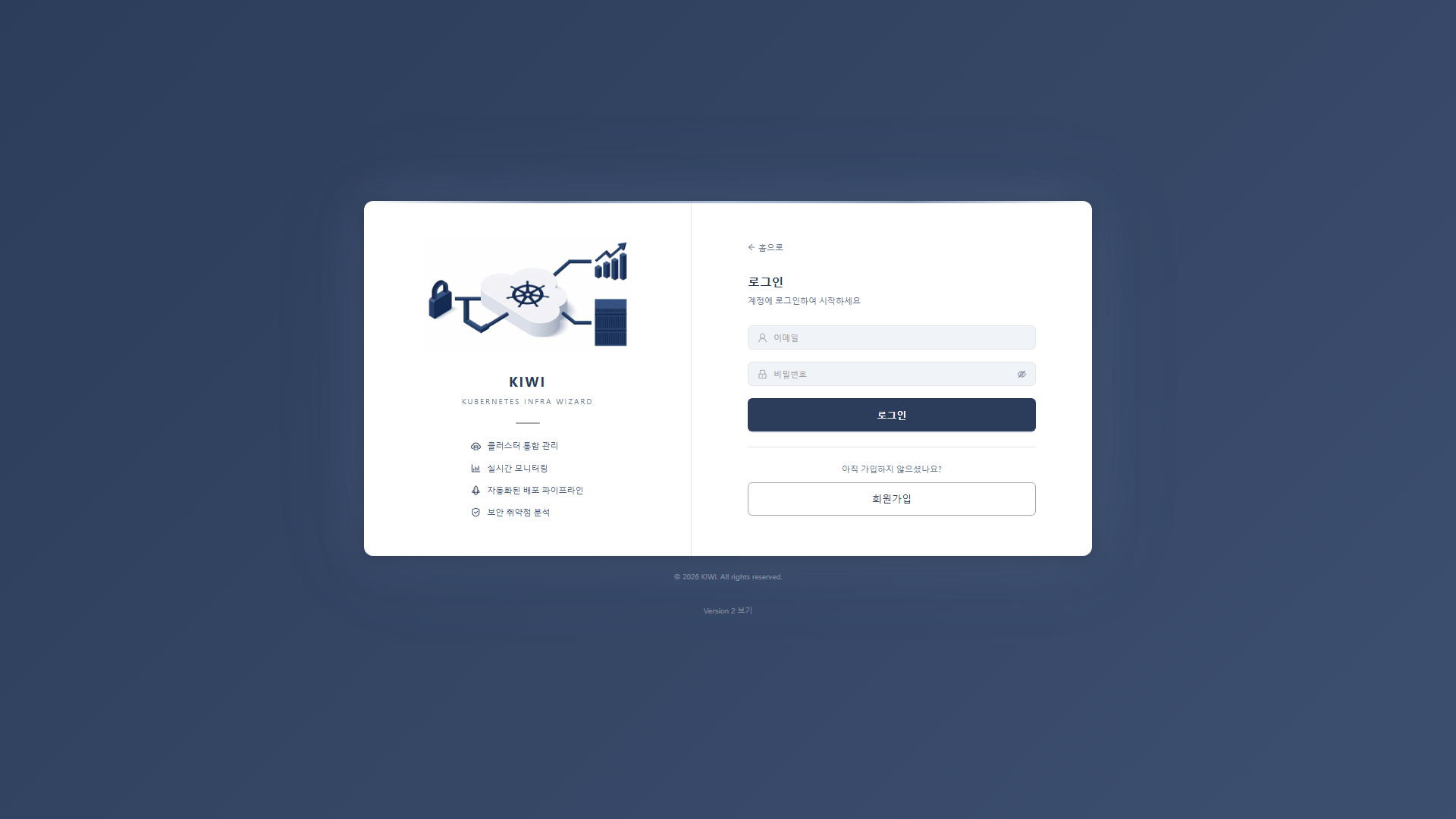
Signup
Step 1: Navigate to Signup Page
Click the Sign Up link on the login page.
Step 2: Enter Basic Information
- Email (Required): The email address used for login. This serves as your account identifier and cannot be changed later.
- Name (Required): Your display name in the system. 2-50 characters in Korean or English.
- Password (Required): Minimum 8 characters, must include 2 or more types from: letters, numbers, special characters. A password strength indicator helps you check security level.
- Confirm Password (Required): Enter the same password as above.
Step 3: Select Organization
Click the Select Organization button to open the organization search modal.
- Search for organizations by keyword, or use consonant/alphabet index buttons for quick navigation.
- Select the organization you belong to. Only one organization can be selected.
Organizations are created by platform administrators. If your desired organization is not in the list, contact the platform administrator to request its creation.
Step 4: Complete Registration
Click the Sign Up button to complete registration. After signup, you cannot log in immediately — you must wait for organization manager approval.
After completing signup, the organization manager must approve your membership before you can log in. If you attempt to log in before approval, a "Pending Approval" message will be displayed.
Login
How to Login
- Navigate to the KIWI platform URL
- Enter your email and password
- Click the Login button.
Session After Login
- Sessions are maintained for 24 hours after login
- You can extend the session using the session extension button in the header before it expires.
- When the session expires, you are automatically redirected to the login page
Login Troubleshooting
Pending Approval
Your membership is pending approval
The organization manager has not yet approved your membership. Contact the organization manager to request approval.
Membership Rejected
Your membership has been rejected
The organization manager rejected your membership request. You can sign up again with a different organization.
Incorrect Email or Password
- Verify that the entered email and password are correct
- Note that passwords are case-sensitive.
- Check for leading or trailing spaces when copying and pasting.
Membership Management (Administrators)
Organization managers can manage membership requests on the [User Management] page.
- Pending Users: Check notifications for new signup requests and approve or reject them.
- Grant Permissions: Assign necessary permissions (device, service, backup, etc.) to approved users.
- Remove Members: Remove users who are no longer part of the organization.
Related Guides
- User Profile - Edit name and change password
- User Management - User invitation and role management.
- Session Management - Session extension and logout