Rollback
Did something go wrong after deployment? With rollback, you can quickly restore to a previous version. When bugs are discovered or performance issues occur in a new version, you can return to a stable previous version with just a few clicks.
- When unexpected errors occur after deploying a new version .
- When performance degradation or memory leaks are discovered .
- When compatibility issues with external services arise .
- When serious bug reports come in from users .
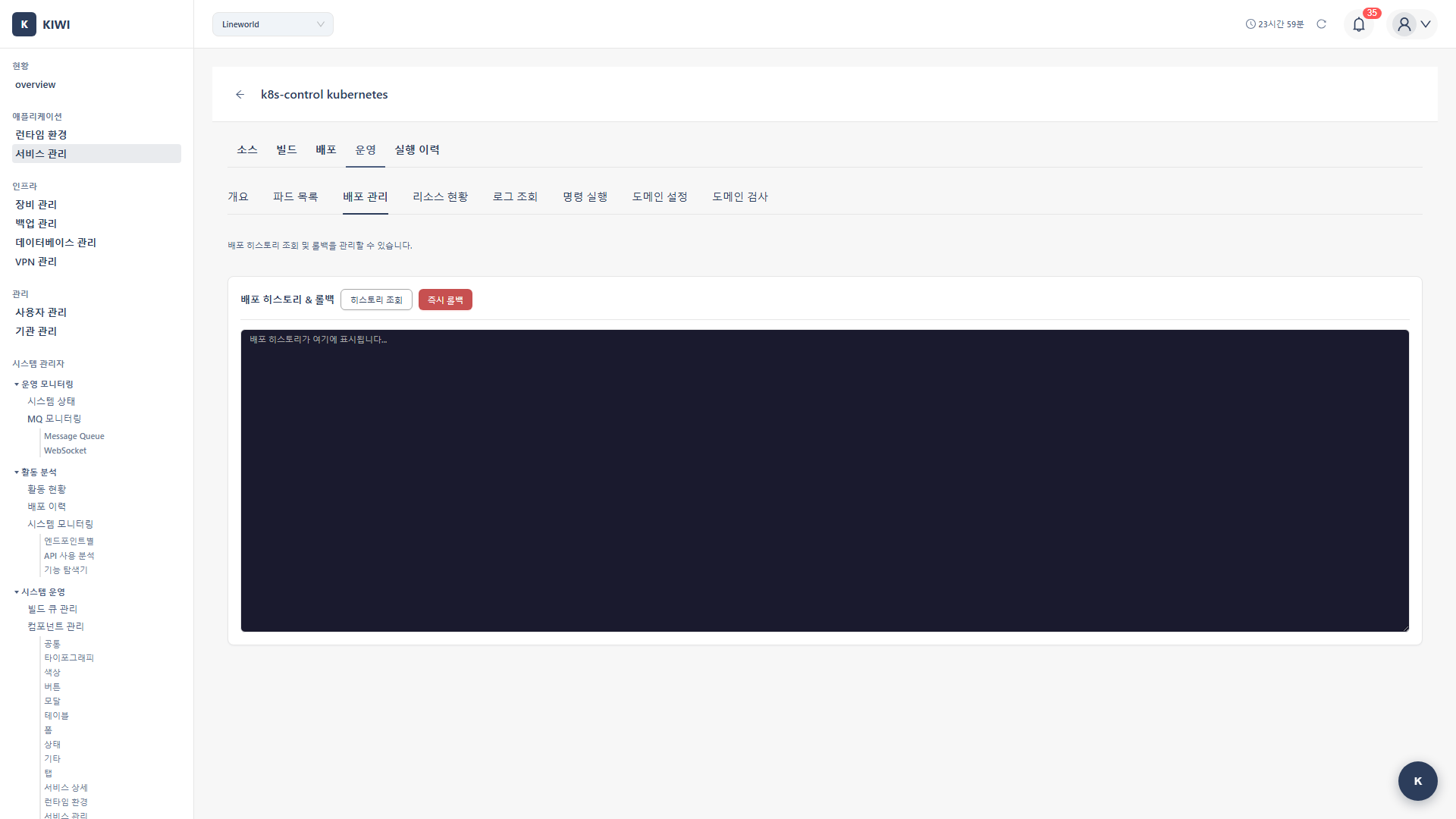
Rollback Overview
Rollback methods differ by runtime:
- Kubernetes: Uses Deployment rollback method. Switches to previous ReplicaSet with automatic rollout history management.
- Docker: Uses redeployment of previous image method. Requires manually selecting the previous image tag.
Kubernetes Rollback
Kubernetes automatically manages deployment history, making rollback easy.
Step 1: Check Deployment History
- Select the service on the [Service Management] page
- Click the Operate stage
- Select the K8s Deployment tab
- Review deployment records in the Rollout History section .
Rollout History Information
The following information is available for each history entry:
- Revision: Deployment version number (highest is newest).
- Image Tag: Image deployed in that version.
- Deployment Time: When deployment was executed.
- Status: Success / Failure.
- Change Cause: Deployment trigger (Manual / Auto CI / Rollback).
Step 2: Select Version to Roll Back To
- Find the version you want to restore in the rollout history .
- Click the Rollback button for that version .
Typically, roll back to the previous version (current Revision - 1). However, if issues spanned multiple versions, select an earlier version that was working stably.
Step 3: Confirm Rollback
- Review rollback target information in the confirmation modal:
- Current version
- Target rollback version
- Number of affected Pods .
- Click the Execute Rollback button .
- If DB schema was changed, there may be data compatibility issues .
- If environment variables or ConfigMaps were changed, verify compatibility with previous version .
Step 4: Monitor Rollback Status
[1/3] Initiating rollback to revision 5...
[2/3] Scaling down new pods...
   → Pod my-app-new-xxx: Terminating
[3/3] Scaling up old pods...
   → Pod my-app-old-xxx: Running (1/3)
   → Pod my-app-old-xxx: Running (2/3)
   → Pod my-app-old-xxx: Running (3/3)
Rollback completed successfully!
Step 5: Verify Service Status
Be sure to verify after rollback is complete:
- All Pod statuses are Running
- Service responses are normal (Health Check passing)
- No errors in logs .
- Key features are working properly .
Docker Rollback
In Docker environments, select a previous image tag and redeploy.
Step 1: Check Previous Image
- Select the service on the [Service Management] page
- Click the Operate stage
- Find the previous image tag in deployment history .
You can check the image tag of previously successful builds in build history. If the tag format is ${BRANCH}-${SHORT_SHA}, you can find it by the previous commit hash.
Step 2: Redeploy Previous Version
- Click the Deploy stage
- Change the Image Tag to the previous version .
- Click the Deploy button .
Step 3: Check Container Status
- Verify status in the Docker Containers tab
- Confirm the new container is in Running status .
- Review logs to ensure no errors .
Emergency Rollback
A guide for emergency situations requiring immediate CLI rollback without using KIWI UI.
Immediate Rollback (Kubernetes)
# Run from KIWI's Operate > Execute tab or use kubectl directly
kubectl rollout undo deployment/<deployment-name> -n <namespace>
Rollback to Specific Version
# First check history
kubectl rollout history deployment/<deployment-name> -n <namespace>

# Rollback to specific revision
kubectl rollout undo deployment/<deployment-name> --to-revision=<revision-number> -n <namespace>
When rolling back directly via CLI, KIWI's deployment status and actual status may temporarily be out of sync. Once the situation stabilizes, synchronize the status in KIWI.
Rollback Precautions
Database Migrations
Be sure to check before rolling back:
- Schema Changes: Verify if tables/columns were added or changed in the new version .
- Data Compatibility: Verify if data saved in the new format is compatible with the previous version .
- Migration Rollback: Review if the DB migration also needs to be rolled back .
If destructive migrations like column deletion or type changes were applied, simple rollback may be difficult. Check DB backups and consult with your DBA.
Configuration Changes
Settings to verify when rolling back:
- Environment Variables: Are all environment variables needed by the previous version present?
- ConfigMap: Are configuration values compatible with the previous version?
- Secret: Were authentication credentials changed?
External Service Integration
- If external API versions changed, verify compatibility .
- Check communication protocols with other microservices .
Handling Rollback Failures
If Previous Image Is Unavailable
- Deleted from registry: Rebuild from the previous version source code .
- Tag overwritten: Attempt to restore using the image digest (SHA)
If you check the image digest (SHA256) in Harbor or Docker Hub, you can restore to a specific version even if the tag was overwritten.
If Issues Persist After Rollback
- Log Analysis: Identify root cause from application logs .
- Environment Check: Review environment variables, ConfigMap, Secret settings .
- External Dependencies: Check database, external API status .
- Earlier Version: Roll back to an even earlier stable version if needed .
Best Practices to Prevent Rollbacks
Recommendations to reduce situations requiring rollback.
Pre-deployment Verification Checklist
- Build: Verify tests passing and security scan passing.
- Staging: Perform functional testing and performance testing.
- Canary: Real environment verification with partial traffic.
- Production: Set up monitoring dashboard and alert configuration.
Auto-rollback Settings (Kubernetes)
You can configure automatic rollback conditions in Kubernetes:
- On Pod startup failure: Configure
progressDeadlineSeconds - On Health Check failure: Configure
readinessProbe,livenessProbe - On resource limit exceeded: Configure
resources.limits
Setting maxUnavailable: 0 keeps existing Pods until new Pods reach Ready status. Automatically rolls back if issues occur.
Related Guides
- K8s Deployment - Kubernetes deployment settings .
- Docker Deployment - Docker environment deployment .
- Operations Management - Monitoring and alert configuration .