Profile
Path: /profile
Permission: All logged-in users.
A page for viewing and managing your account information. You can manage personal settings in one place, including changing your name, managing passwords, and checking GitLab integration information.
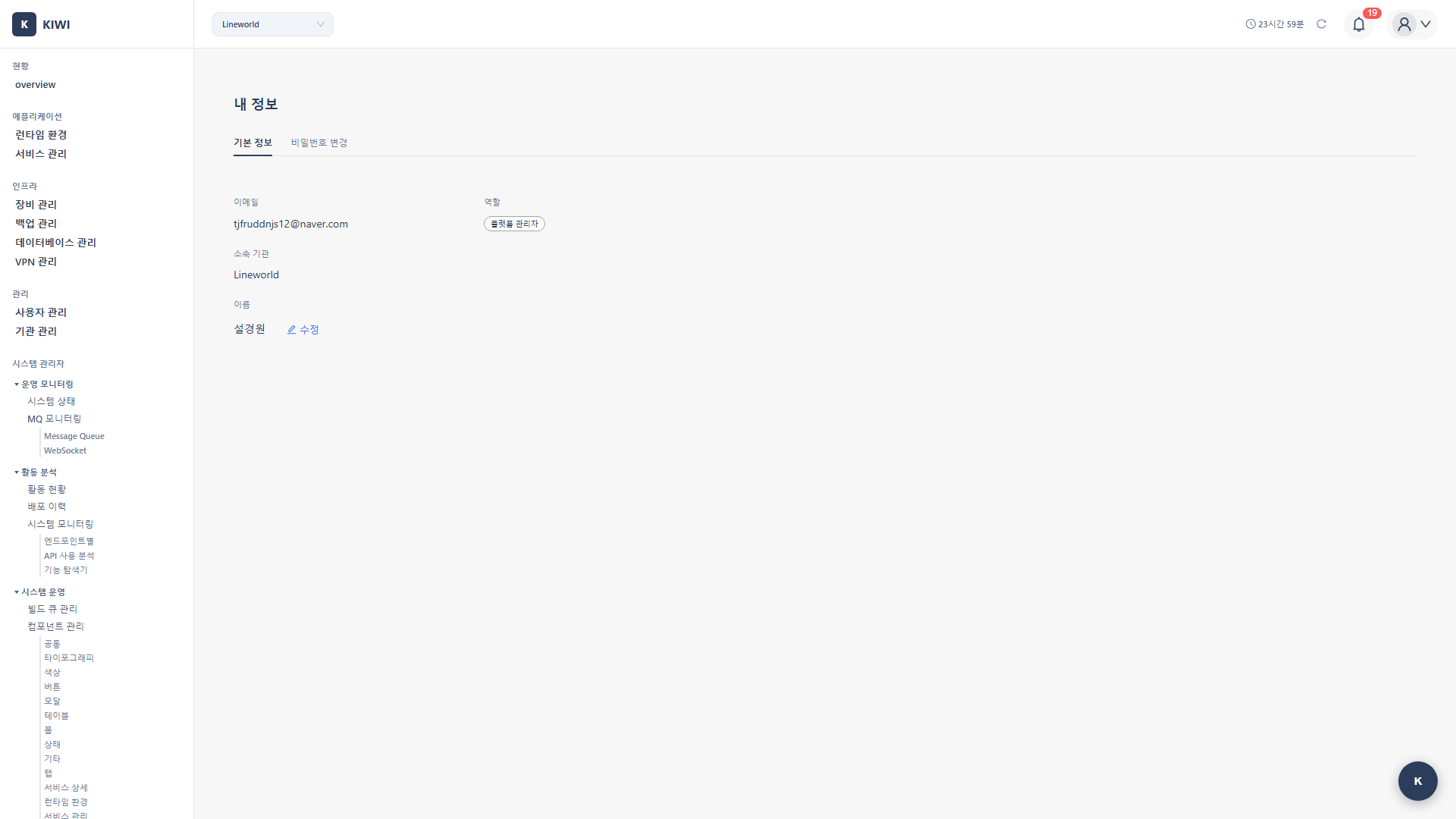
The profile page is more than just viewing personal information - it's the starting point for account security:
- Maintain Account Security: Protect your account by regularly changing passwords.
- Smooth Team Collaboration: Accurate name display helps team members easily identify you
- GitLab Integration Management: Maintain smooth integration between KIWI and GitLab
- Login History Check: Detect abnormal login attempts early.
Key Features
Profile Information View
Information you can check on the profile page:
- Name: Name displayed to team members. Can be modified.
- Email: Email address used for login. Cannot be modified (account identifier).
- Role: Manager (Administrator) or Member. Cannot be modified (only admins can change).
- Organization: Current organization name. Cannot be modified.
Profile Editing
Information you can directly modify:
- Name Change: You can freely modify your display name at any time
- Password Change: Change to a new password after verifying your current password
Email cannot be changed directly because it's used as the account's unique identifier. If you absolutely need to change your email, contact your organization Manager. They can create a new account and transfer your existing permissions.
GitLab Integration Information
If a GitLab account was auto-created in KIWI, you can view the integration information:
- GitLab Username: GitLab account name linked with KIWI
- Initial Password: Button to view the auto-generated temporary password
The GitLab initial password is temporary. You must change your password after first logging into GitLab. Using the initial password as-is poses a security risk.
UI Layout
Profile Information Card
The profile card at the top of the screen shows the following information at a glance:
- User avatar (profile image)
- Display name
- Login email
- Role badge (Manager/Member)
- Organization name
Security Settings Section
Provides account security-related features:
- Password change functionality
- Recent login time display
Regularly check your recent login time. If there's a login record at a time when you didn't log in, your account may have been compromised. In this case, immediately change your password and report to an administrator.
GitLab Integration Section
View and manage GitLab account integration status:
- Linked GitLab username display
- Initial password view button (when needed)
How to Use
Changing Your Name
To change the name displayed to team members:
- Navigate to the [Profile] page by clicking the left menu or profile icon in the upper right
- Click the Edit button (pencil icon) next to the Name field in the profile information card
- Enter your new name in the input field
- Click the Save button to complete the change
Using your real name or team nickname reduces confusion during collaboration. Names are also recorded in audit logs, so it's good to use a trackable name.
Changing Your Password
Change your password regularly for account security:
- Navigate to the [Profile] page
- Find the Security Settings section and click the Change Password button.
- Enter the following information in the password change form:
- Current Password: Your current password (for identity verification)
- New Password: The new password you want to use
- Confirm Password: Re-enter the new password (to prevent typos)
- Click the Change button to complete the password change
Password Requirements:
- Minimum Length: 8 characters or more.
- Uppercase Letter: At least 1 required.
- Lowercase Letter: At least 1 required.
- Number: At least 1 required.
- Special Character: Recommended (e.g., !@#$%^&*).
- 12+ characters is recommended (longer is safer)
- Passphrase-style passwords are easy to remember and secure (e.g., "MyDog@te2Pizza!")
- Don't include personal information (birthdate, phone number, etc.)
- Don't use the same password as other services.
Viewing GitLab Initial Password
If a GitLab account was auto-created in KIWI, you can view the initial password:
- Navigate to the [Profile] page
- Find the GitLab Integration section at the bottom of the page
- Click the View Initial Password button.
- Copy the displayed password
- After logging into GitLab, be sure to change your password
Understanding Role Permissions
KIWI has two roles, and available features differ based on each role:
Manager (Administrator)
A role with overall administrative authority for the organization:
- User Management: Invite new users, change user roles, deactivate users.
- Permission Management: Grant/revoke permissions to members.
- Resource Management: Manage most resources including devices, runtimes, services.
- Organization Settings: Modify organization information, configure policies.
Member
A role that uses features within the scope of granted permissions:
- Basic Viewing: View basic information like dashboard, service list.
- Granted Permissions: Use additional features based on permissions granted by Manager.
- Profile Management: Change own name and password.
Only organization Managers can change roles. If you need more permissions, request from your organization administrator. You can also be granted individual feature permissions on the [Permission Management] page.
Account Security Guide
A practical guide for safe account management:
Password Management Best Practices
Regular Password Changes:
- Change your password at least every 3 months
- Don't reuse previously used passwords.
- Don't use the same password as other services (personal email, social media, etc.)
Use Strong Passwords:
- 12+ character passwords are recommended.
- Use unpredictable character combinations.
- Don't include personal information (birthdate, phone number, name, etc.)
Login Security Checks
Regular Checking Habits:
- Periodically check your recent login time on the profile page
- Immediately change your password if there's a record at a time you didn't log in
- Report suspicious activity to your organization administrator immediately.
- Change password immediately: Your current password may have been leaked.
- Report to administrator: Request an audit log review
- Check other services: Change passwords on other services using the same password
Glossary
Key terms explained for first-time users:
- Avatar: Profile image representing the user. Automatically generated from the first letter of your name or can be uploaded directly.
- Role: Classification determining the scope of user permissions. Managers have administrative permissions, Members have basic usage permissions.
- Initial Password: Temporary password created when KIWI auto-generates a GitLab account. Must be changed after first login.
Frequently Asked Questions
Click the Forgot Password link on the login page. A password reset link will be sent to your registered email.
No. GitLab password and KIWI password are managed separately. You need to change each one individually.
Email cannot be changed directly as it's used as the account identifier. Contact your organization Manager to request a new account creation.
Important Notes
- Email Cannot Be Changed: Email is the account's unique identifier. Contact administrator if change is needed.
- Forgot Password: Use the Forgot Password feature on the login page.
- GitLab Managed Separately: GitLab password is separate from KIWI password. Manage each one individually.
- Role Changes: Role (Manager/Member) changes can only be made by organization administrators.