Domain Configuration
After deploying a service, configure domains so users can access it. KIWI provides various connection methods depending on the runtime environment (K8s, Docker/Podman) and supports TLS certificate configuration.
- Memorable addresses: Access via domain like
app.example.cominstead of IP addresses - Secure communication: Data encryption with TLS/HTTPS
- Service routing: Distinguish multiple services on a single server by domain
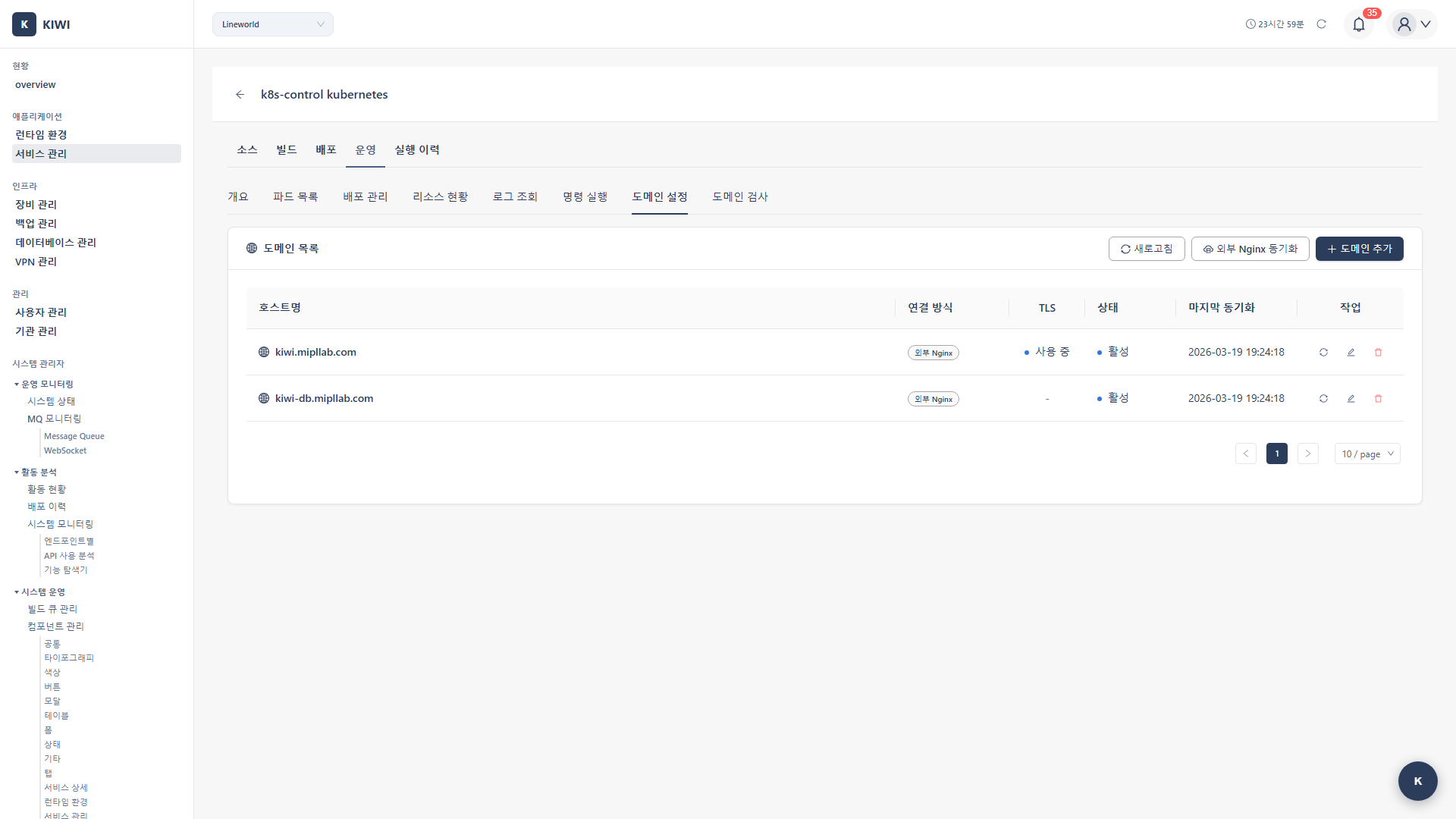
How to Access
- Click the Operations card for the target service on the [Service Management] page
- Select the Domain Settings tab in the operations modal.
Connection Methods
KIWI offers different connection methods depending on the runtime environment.
Connection Methods Available for K8s Runtime
- Ingress: Creates a K8s Ingress resource to connect the domain to a service. Routes traffic through an Ingress Controller (nginx, traefik, haproxy) and can automatically issue TLS certificates with cert-manager integration. This is the recommended method.
- NodePort: Exposes a K8s Service as NodePort type. Uses ports in the 30000-32767 range and allows specifying external IPs directly. Use when no Ingress Controller is available.
- LoadBalancer: Automatically provisions an external load balancer in cloud environments. The cloud provider (AWS, GCP, etc.) automatically assigns an IP.
- External Nginx: Deploys reverse proxy configuration to a separate Nginx server outside the K8s cluster. Creates and applies Nginx configuration files via SSH.
- DNS Only: Records domain information only. Use to register domains for management purposes without any infrastructure changes.
Connection Methods Available for Docker/Podman Runtime
- Project Nginx: Adds reverse proxy configuration to the Nginx container within a Docker Compose project. Creates configuration files in the project directory's
nginx/conf.dvia SSH and reloads Nginx usingdocker exec. - External Nginx: Configures reverse proxy on a separate Nginx server outside the Docker host. Works the same as External Nginx for K8s.
- DNS Only: Records domain information only.
Domain List
The Domain Settings tab shows all domains registered for the service in a list.
- Hostname: The registered domain name. Wildcards (
*.example.com) are also supported. - Connection Method: The connection type for that domain (Ingress, NodePort, External Nginx, etc.).
- TLS: Whether a TLS certificate is in use.
- Status: Current proxy status.
- Pending: Created but not yet applied to infrastructure
- Applying: Being applied to infrastructure
- Active: Successfully applied and operating normally.
- Failed: Last application failed.
- Last Sync: Time of the last infrastructure state synchronization.
- Actions: Apply/Sync, Edit, Delete buttons.
Adding a Domain
Step 1: Open the Add Domain Modal
Click the Add Domain button in the Domain Settings tab.
Step 2: Enter Basic Information
- Hostname (Required): Enter the domain to connect. Example:
app.example.com - Connection Method (Required): Available connection methods are automatically filtered based on the runtime environment.
Step 3: Connection Method-Specific Settings
Additional settings vary depending on the selected connection method.
Ingress Settings
- Upstream Service (Required): Select the K8s Service to forward traffic to. A dropdown automatically fetches the service list from the cluster. Manual input is also possible (
servicename.namespace:portformat). - Ingress Class (Required): Select the Ingress Controller to use. Supports nginx, traefik, and haproxy.
NodePort Settings
- Upstream Service (Required): Select the K8s Service to expose.
- NodePort (Optional): Port number to use (30000-32767). Auto-assigned if left empty.
- External IPs (Optional): Specify IP addresses for external access. Multiple entries are supported.
LoadBalancer Settings
- Upstream Service (Required): Select the K8s Service to expose.
- The cloud provider automatically assigns an external IP.
External Nginx Settings
- Upstream Address (Required): The service address to forward traffic to (
IP:portformat). - SSH Connection Info (Required): SSH connection information to access the Nginx server.
- Host, Port (default 22), Username
- Authentication method: Password or SSH Key
- Can select a device registered in Device Management for auto-fill
- Multi-hop SSH is also supported.
- Config File Path (Optional): Path where the Nginx conf file will be saved. Default is
/etc/nginx/conf.d.
Project Nginx Settings
- Upstream Service (Required): Docker Compose service name and port (
servicename:portformat). - Configuration files are automatically created in the project directory's
nginx/conf.d.
DNS Only
- Just enter the hostname with no additional settings required. Used to record domain information.
Step 4: TLS Settings (Optional)
Enabling TLS allows HTTPS access.
- TLS Disabled: Uses HTTP only.
- Auto (cert-manager): Available only with the Ingress connection method. K8s cert-manager automatically issues and renews certificates.
- Manual: Upload certificates directly. Enter certificate file paths (External Nginx) or certificate content.
Step 5: Save
Review the settings and click the Add button to register the domain.
When a domain is added, it is created in "Pending" status. You must run the Apply action to reflect it in the actual infrastructure. DNS Only is an exception and immediately becomes "Active".
Applying Domains
The process of applying registered domains to actual infrastructure.
K8s Connection Methods (Ingress, NodePort, LoadBalancer)
- Click the Apply button (cloud upload icon) for the domain in the domain list
- KIWI automatically creates or updates K8s resources (Ingress YAML, Service modifications, etc.)
- Once applied, the status changes to Active
External Nginx Connection Method
- Click the Sync button for the domain in the domain list
- An SSH credentials input modal appears. Enter authentication info:
- Password authentication: Username and password
- SSH Key authentication: Username and SSH private key file (.pem, .key) upload
- KIWI connects to the Nginx server via SSH and:
- Checks if an existing configuration file exists.
- Creates a new configuration file (confirms overwrite if existing file found)
- Validates the configuration with
nginx -t - Reloads Nginx on successful validation.
- Once applied, the status changes to Active
If the nginx -t test fails during application, the configuration is rolled back. Check the error message, fix the Upstream address or settings, and try again.
Project Nginx Connection Method
- Click the Apply button for the domain in the domain list
- KIWI connects to the Docker host via SSH and creates a configuration file in the project directory's
nginx/conf.d - Reloads the project Nginx container using
docker exec
External Nginx Server Sync
When domains using External Nginx exist, the External Nginx Sync feature becomes available. This feature compares and synchronizes the actual configuration files on the Nginx server with the domain list registered in KIWI.
- Click the External Nginx Sync button at the top of the domain list
- Enter SSH credentials.
- KIWI scans the server's conf files and compares them with the DB
- Review the results:
- Synced: Domains matching between server and DB
- Server Only: Domains found on the server but not registered in KIWI
- DB Only: Domains registered in KIWI but with no configuration on the server.
- Domains that exist only on the server can be imported to register them in KIWI
Domain Management
Editing a Domain
- Click the Edit button (pencil icon) for the domain in the domain list
- Modify the necessary information in the edit modal.
- Click the Save button to save changes.
- Run Apply again to reflect changes in the infrastructure
Deleting a Domain
- Click the Delete button (trash icon) for the domain in the domain list
- Click Delete in the confirmation dialog
Deleting a domain may block access via that domain. For the K8s Ingress method, the resource is also deleted.
Troubleshooting
Apply Failure
- Nginx -t validation failure: Check if the Upstream address is correct. Specifying an invalid address or port causes Nginx configuration validation to fail.
- SSH connection failure: Verify the SSH connection info for the External Nginx server. Check if the password or SSH key is correct and if the SSH port is open in the firewall.
- K8s resource creation failure: Check if the Ingress Controller is installed and if the Service exists.
Domain Inaccessible
- Check DNS settings: Verify that a DNS A record or CNAME is configured to point the domain to the server IP.
- Check status: Verify the status is "Active" in the domain list. If "Pending", run the apply action.
- Check firewall: Ensure ports 80/443 are externally accessible.
TLS Certificate Errors
- Check cert-manager: When using auto TLS, verify that cert-manager is installed in the K8s cluster.
- Check certificate paths: When using manual TLS, verify the certificate file paths are correct.
Related Guides
- Service Management - Service registration and management.
- Runtime Environments - K8s/Docker runtime connections.
- Device Management - SSH-based device registration.