SAST Scan
Want to find security vulnerabilities while writing code? SAST (Static Application Security Testing) is a technology that statically analyzes source code without executing it to detect security vulnerabilities. Think of it like having a code reviewer examine your code from a security perspective.
Security vulnerabilities are cheaper to fix the earlier they are found in development. Integrating SAST into your CI/CD pipeline automatically checks security every time code is committed, preventing vulnerabilities from reaching production.
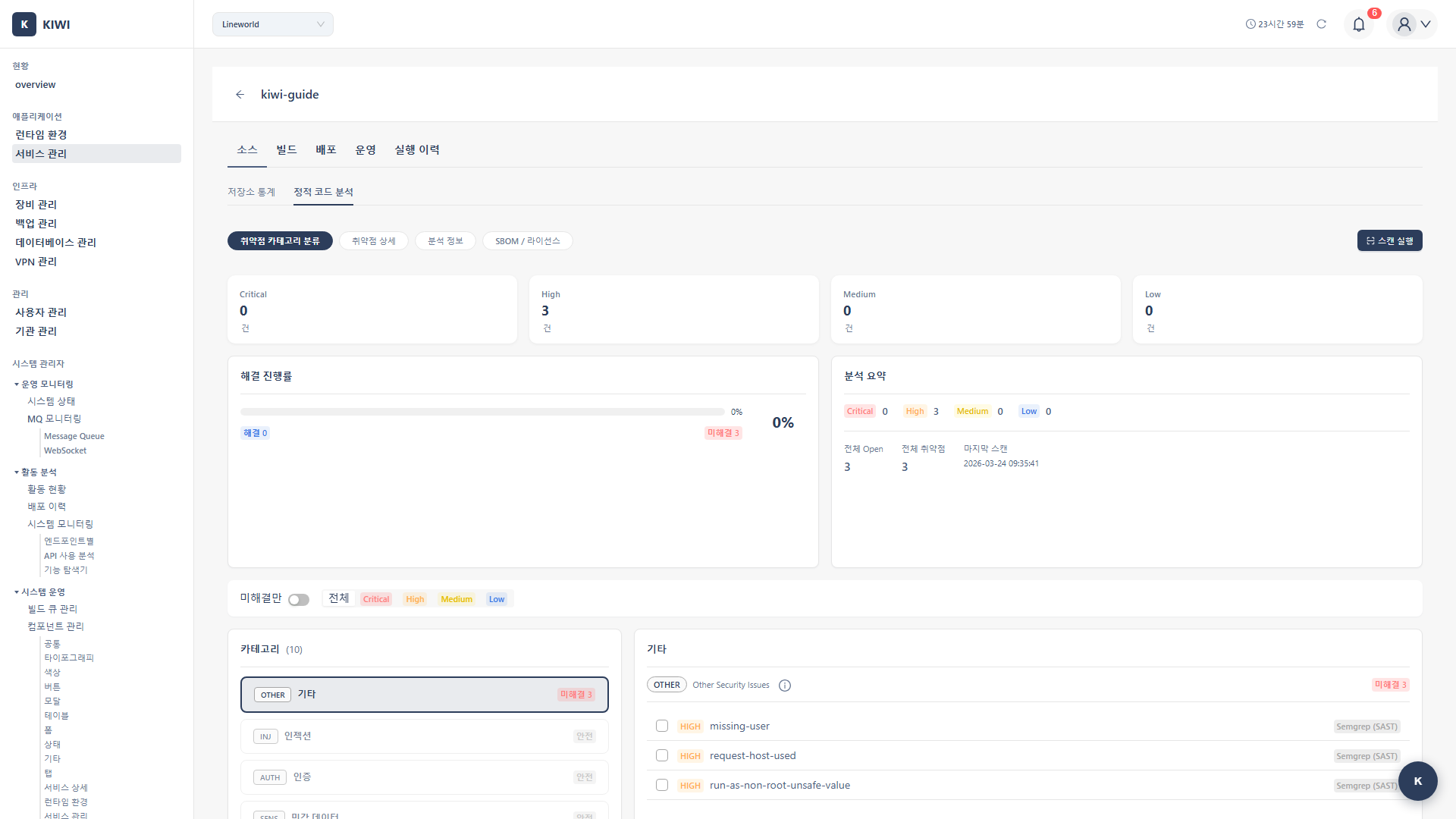
Overview
- Analysis target: Source code.
- Stage: Source stage (on code commit/push)
- Analysis engines: CodeQL, Semgrep
- Supported languages: Java, JavaScript, Python, Go, C/C++, Ruby, C#, etc.
Supported Analysis Engines
KIWI provides two powerful SAST engines. Understand the characteristics of each engine and choose according to your situation.
CodeQL
GitHub's code analysis engine, providing in-depth data flow analysis.
- Analysis method: Data flow analysis - tracks where variables are created and where they flow to
- Strengths: Excellent at detecting complex vulnerabilities, low false positive rate.
- Supported languages: Java, JavaScript, Python, Go, C++, C#, Ruby
- Analysis time: Relatively longer (5-30 minutes)
Semgrep
A lightweight static analysis tool providing fast pattern-based analysis.
- Analysis method: Pattern matching - detects code that matches defined patterns.
- Strengths: Fast analysis speed, easy to write custom rules.
- Supported languages: 30+ languages.
- Analysis time: Very fast (1-5 minutes)
- Security audits or pre-release checks: CodeQL recommended (more precise analysis)
- Daily CI integration: Semgrep recommended (faster feedback)
- Comprehensive analysis: Use both recommended (each engine can find different types of vulnerabilities)
Step 1: Starting a SAST Scan
- Navigate to the [Service Management] page
- Select the service to analyze
- Click the Source stage in the pipeline
- Select the SAST tab
- Click the Start Scan button.
Step 2: Analysis Settings
2.1 Select Analysis Engine
Choose the engine that fits your situation:
- CodeQL: When deep analysis is needed, recommended for security audits.
- Semgrep: When fast analysis is needed, recommended for CI integration.
- Both: When comprehensive analysis is desired (recommended)
2.2 Select Analysis Profile
CodeQL profiles:
- Default: Basic security ruleset. Suitable for most cases.
- Security: Security-focused ruleset. Recommended for security audits.
- Extended: Extended ruleset. Detects more vulnerabilities but takes longer to analyze.
Semgrep profiles:
- p/default: Basic ruleset. Suitable for general security checks.
- p/owasp-top-ten: Focuses on OWASP Top 10 vulnerabilities. Recommended for web applications.
- p/security-audit: Comprehensive security audit rules. Use when thorough checking is needed.
The OWASP (Open Web Application Security Project) Top 10 is a list of the 10 most critical web application security vulnerabilities. It includes the most common and dangerous vulnerabilities such as SQL Injection, XSS, and authentication flaws.
Step 3: Running Analysis
3.1 Analysis Progress
When the scan starts, it proceeds through the following stages:
[1/4] Cloning repository...          <- Getting source code
[2/4] Setting up analysis environment...  <- Preparing analysis environment
[3/4] Running CodeQL analysis...     <- Running CodeQL analysis
   -> Extracting source code...       <- Code extraction
   -> Building database...            <- Creating analysis database
   -> Running queries...              <- Running vulnerability queries
[4/4] Running Semgrep analysis...    <- Running Semgrep analysis
   -> Loading rules...                <- Loading rules
   -> Scanning files...               <- Scanning files
Analysis completed!                  <- Complete
3.2 Analysis Status
- Idle: Waiting for analysis.
- Analyzing: Analysis in progress (progress visible)
- Completed: Analysis complete (results available)
- Failed: Analysis failed (check error message)
Step 4: Reviewing Results
Once the analysis is complete, you can review the discovered vulnerabilities on the results screen.
4.1 Results Summary
- Total findings: Total number of detected vulnerabilities.
- By severity: Number of vulnerabilities classified as Critical/High/Medium/Low
- By rule: Classification by vulnerability type such as SQL Injection, XSS
4.2 Vulnerability Details
Click each vulnerability to see the following information:
- File location: File path and line number where the vulnerability was found
- Vulnerability type: SQL Injection, XSS, Command Injection, etc.
- Severity: Critical/High/Medium/Low
- Description: Detailed explanation of why this vulnerability is dangerous.
- Remediation guidance: How to fix the vulnerability.
- CWE ID: Standard vulnerability classification identifier (e.g., CWE-89 for SQL Injection)
If you can't fix all vulnerabilities at once, start with Critical and High severity. Authentication/authorization vulnerabilities and injection vulnerabilities should be resolved as top priority.
Key Detected Vulnerability Types
Knowing the common vulnerability types detected by SAST helps you prevent them while writing code.
Injection
Occurs when external input is used directly in queries or commands.
-
SQL Injection (CWE-89): When user input is directly inserted into SQL queries.
// Vulnerable code
String query = "SELECT * FROM users WHERE id = " + userId;

// Safe code
PreparedStatement stmt = conn.prepareStatement("SELECT * FROM users WHERE id = ?");
stmt.setString(1, userId); -
Command Injection (CWE-78): When user input is used in OS commands.
-
LDAP Injection (CWE-90): When user input is inserted into LDAP queries.
Authentication/Authorization (Auth)
Vulnerabilities related to authentication and permission checks.
- Broken Authentication (CWE-287): Flaws that allow authentication bypass.
- Hardcoded Credentials (CWE-798): Passwords or API keys hardcoded in source code.
- Insufficient Authorization (CWE-285): Inadequate permission checks.
Never write passwords, API keys, or tokens directly in source code. Use environment variables or secret management tools. Once recorded in Git history, they're difficult to remove.
Data Exposure
Vulnerabilities where sensitive data can be unintentionally exposed.
- XSS (CWE-79): Malicious scripts can be injected into web pages.
- Sensitive Data Exposure (CWE-200): Sensitive information exposed in logs or error messages.
- Path Traversal (CWE-22): Access to unintended files using
../
Configuring Automatic Scans
Running scans manually each time is cumbersome. Setting up Auto CI runs SAST automatically whenever code is pushed.
Integration with Auto CI
Configure automatic SAST execution in Auto CI Settings:
- Open the Auto CI settings modal.
- Enable SAST in the Security Analysis section.
- Select the analysis engine and profile.
- Click Save
Scan Triggers
- Push: Automatic scan whenever code is pushed.
- Merge Request: Scan when an MR is created (security check before code review)
- Manual: Scan manually when needed.
Running SAST automatically on Merge Requests lets you review security vulnerabilities during code review. When vulnerabilities are found, they appear as MR comments, allowing issues to be resolved before the code is merged.
Troubleshooting
Analysis Failure
If analysis fails, check the following:
-
Unsupported language: Check the list of supported languages for CodeQL and Semgrep. Unsupported languages cannot be analyzed.
-
Code inaccessible: Verify that the Git token has read permissions for the repository. The token may also have expired.
-
Timeout: Large repositories may take longer to analyze. Limit the analysis scope to specific directories or increase the timeout setting.
Handling False Positives
SAST sometimes reports code as vulnerable when it's not actually vulnerable.
-
Ignore: Mark confirmed false positives as "Ignore" to exclude them from future scans.
-
Adjust rules: If a specific rule generates too many false positives, create a custom profile and disable that rule.
-
Add comment: Add
// nosecor// nosemgrepcomments to exclude specific lines from scanning.String password = "test123"; // nosec - for test environment only
If there are too many false positives, developers will ignore SAST results. Actively add confirmed false positives to ignore lists so you can focus on real vulnerabilities.
Related Guides
- SCA Scan - Dependency vulnerability analysis.
- DAST Scan - Dynamic security testing.
- Auto CI Setup - Automated analysis settings.