Permission Management [Manager Only]
Path: /permissions
This page allows you to finely manage permissions for users within your organization. By clearly defining who can perform which actions, you can strengthen security and prevent accidents caused by mistakes.
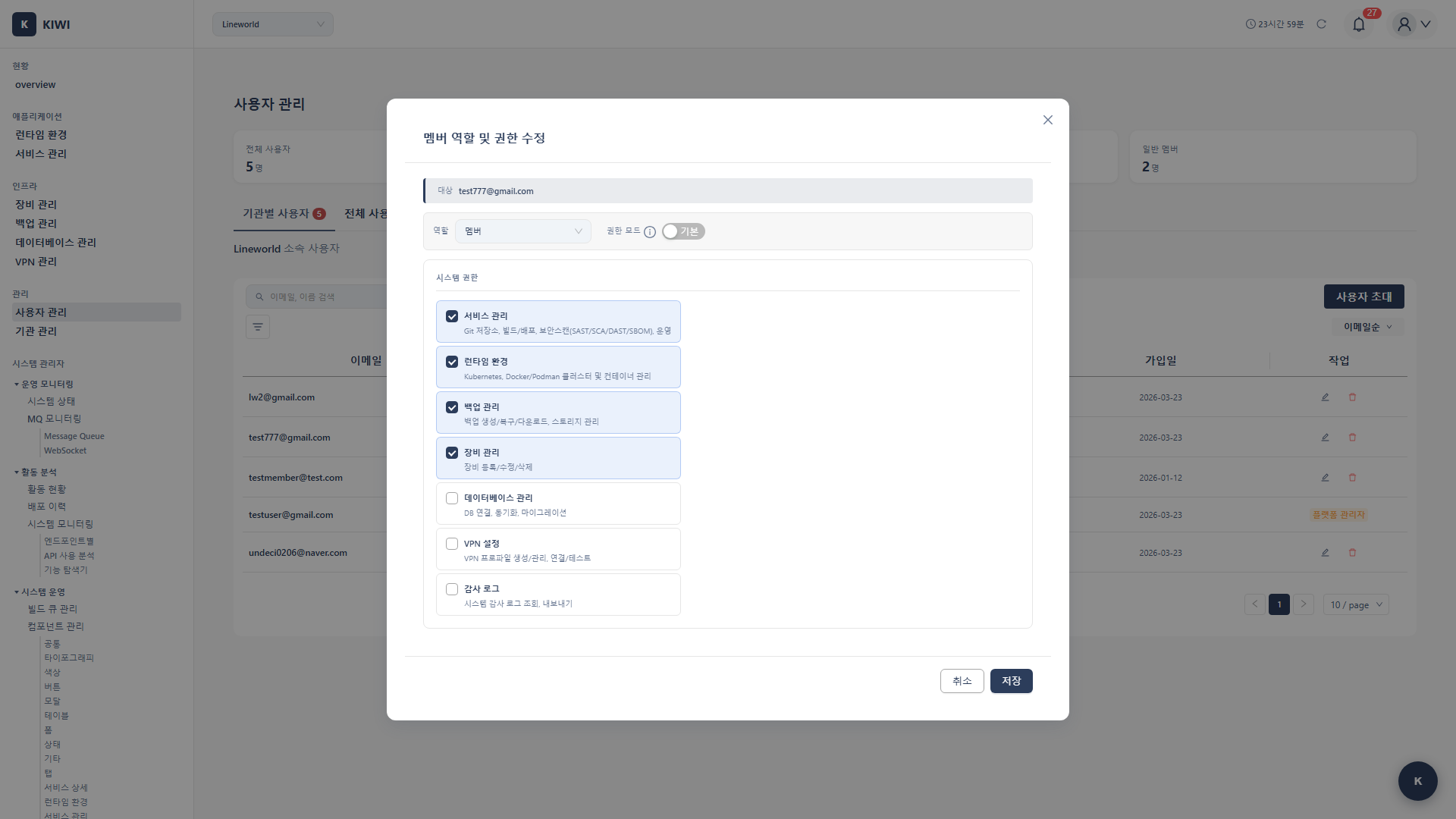
The [Permission Management] page is only accessible to users with the Manager role. The menu is not displayed to regular users.
Why is Permission Management Important?
Permission management is not just about restricting access. Proper permission settings provide the following benefits:
- Enhanced Security: Limit users who can perform sensitive operations (deployment, deletion, etc.)
- Accident Prevention: Prevent data loss or service outages caused by mistakes.
- Accountability Tracking: Clearly identify who performed which actions.
- Compliance: Meet security audit and compliance requirements.
The basic principle of security is "grant only the minimum permissions necessary for work." For example, give developers only build permissions, and operators only deployment permissions. Set permissions according to each role.
Understanding the Permission System
How are permissions structured?
KIWI permissions are formatted as category:action. For example, service:deploy means "the deploy action in the service category."
Permission examples:
service:deploy→ Service deployment permission.backup:restore→ Backup recovery permission.device:create→ Device registration permission.
Permissions are not hierarchical. Having the service:deploy permission does not automatically grant service:view permission. Each required permission must be explicitly granted.
Permission Categories
KIWI permissions are divided into 8 categories by functional area:
- infra: Runtime environment management. Includes permissions for environment registration, modification, and deletion.
- device: Device management. Includes permissions for device registration, modification, and deletion.
- service: Service management. Includes permissions for build, deploy, operations, and security scanning.
- backup: Backup management. Includes permissions for backup creation, recovery, and deletion.
- database: Database management. Includes permissions for DB connection, synchronization, and restoration.
- audit: Audit logs. Includes permissions for log viewing and exporting.
- vpn: VPN management. Includes permissions for profile creation and deletion.
- kubernetes: Kubernetes-specific. Includes permissions for command execution and log viewing.
Risk Classification
Permissions are classified into four levels based on system impact. Higher risk permissions should be granted more carefully.
- Critical (Red): Can have significant impact on the system. May cause data loss or failures. Representative permissions include
service:delete,backup:restore,*:terminal, and*:exec. - High (Orange): Makes direct changes to production environments. Representative permissions include
service:deploy:execute,database:sync, and*:delete. - Medium (Yellow): Necessary for daily operations. Representative permissions include
*:create,*:update, andservice:build:execute. - Low (Green): Only information viewing without data changes. Representative permissions include
*:read,*:view, and*:logs.
Critical permissions (terminal, exec, delete, restore, etc.) can make irreversible changes to the system. Only grant these to trusted users and review regularly.
UI Layout
Tab Structure
The [Permission Management] page consists of two tabs:
- Permission List: View all permissions defined in the system by category. You can see the description and risk level of each permission.
- User Permissions: Check what permissions a specific user has, and grant or revoke permissions.
What you can do on the Permission List screen
- Collapse or expand permission lists by category.
- View each permission's name, description, and risk level at a glance.
- Click a permission code to copy it to clipboard
What you can do on the User Permissions screen
- Select a user from the dropdown to view their permissions.
- Grant new permissions or revoke existing ones.
- Filter permissions by category for quick searching.
How to Use
Viewing Permission Definitions
Use this when you want to check what permissions exist in the system and what each permission means.
- Navigate to the [Permission Management] page
- Select the Permission List tab
- Click the category you want to check to expand it
- View each permission's name, description, and risk level (color)
Click a permission name to copy the permission code (like service:deploy) to your clipboard. This is useful for API integration or documentation.
Checking User Permissions
Use this when you want to check what permissions a specific user currently has.
- Navigate to the [Permission Management] page
- Select the User Permissions tab
- Select the user to check from the dropdown at the top
- The user's permission list will be displayed by category.
Granting Permissions
Use this when you want to grant new permissions to a user.
- Navigate to the [Permission Management] page
- Select the User Permissions tab
- Select the user to grant permissions to from the dropdown
- Click the Grant Permission button.
- Select the permissions to grant:
- Permissions are grouped by category for easy navigation.
- Enter keywords in the search box to filter quickly.
- You can select multiple permissions at once.
- Click the Grant button to complete.
When you grant or revoke permissions, they take effect immediately. The user does not need to log in again. However, pages that are already open must be refreshed to reflect the changed permissions.
Revoking Permissions
Use this when you want to remove specific permissions from a user.
- Navigate to the [Permission Management] page
- Select the User Permissions tab
- Select the target user from the dropdown
- Find the permission to revoke in the permission list
- Click the Revoke button next to that permission.
- Click Revoke in the confirmation dialog to complete.
When you revoke a permission, the user will immediately lose access to related features. Make sure this won't disrupt their work beforehand.
Permission Details
infra Permissions (Runtime Environment)
infra:read(Low): View runtime environment list and details.infra:create(Medium): Register new runtime environment.infra:update(Medium): Modify runtime environment settings.infra:delete(High): Delete runtime environment.
device Permissions (Device Management)
device:read(Low): View device list and details.device:create(Medium): Register new device.device:update(Medium): Modify device information.device:delete(High): Delete device.
service Permissions (Service Management)
Basic Permissions:
service:view(Low): View service list and details.service:create(Medium): Register new service.service:update(Medium): Modify service settings.service:delete(Critical): Delete service (including all related data).
Build/Deploy Permissions:
service:build:view(Low): View build history and logs.service:build:execute(Medium): Execute builds.service:deploy:view(Low): View deployment history.service:deploy:execute(High): Execute deployments (changes production environment).
Security Scan Permissions:
service:security:view(Low): View security scan results.service:security:execute(Medium): Execute SAST/SCA/DAST/SBOM scans.
Kubernetes Operation Permissions:
service:operate:k8s:logs(Low): View Pod logs.service:operate:k8s:restart(Medium): Restart Pods.service:operate:k8s:scale(Medium): Adjust Pod scale (change replica count).service:operate:k8s:exec(Critical): Execute commands inside containers.service:operate:k8s:terminal(Critical): Access container terminal.service:operate:k8s:manage(Critical): Direct K8s resource management (YAML editing, etc.).
Docker Operation Permissions:
service:operate:docker:logs(Low): View container logs.service:operate:docker:restart(Medium): Restart containers.service:operate:docker:exec(Critical): Execute commands inside containers.service:operate:docker:terminal(Critical): Access container terminal.service:operate:docker:manage(Critical): Docker resource management.
Podman Operation Permissions:
service:operate:podman:logs(Low): View container logs.service:operate:podman:restart(Medium): Restart containers.service:operate:podman:exec(Critical): Execute commands inside containers.service:operate:podman:terminal(Critical): Access container terminal.service:operate:podman:manage(Critical): Podman resource management.
backup Permissions (Backup Management)
backup:read(Low): View backup list and status.backup:create(Medium): Create backups.backup:restore(Critical): Restore from backup (overwrites existing data).backup:delete(High): Delete backups.
database Permissions (Database)
database:read(Low): View DB connection list.database:create(Medium): Register DB connections.database:sync(High): Execute data synchronization.database:restore(Critical): Restore data.
audit Permissions (Audit Logs)
audit:view(Low): View audit logs.audit:export(Medium): Export audit logs.
Practical Tips and Best Practices
Recommended Permission Settings by Role
Here are recommended permission settings for common team structures:
Developer:
service:view,service:build:view,service:build:executeservice:security:view,service:security:executeservice:operate:*:logs(log viewing)
Operator:
- Developer permissions +
service:deploy:execute service:operate:*:restart,service:operate:*:scalebackup:read,backup:create
Senior Operator:
- Operator permissions +
service:operate:*:exec,service:operate:*:terminal backup:restore
Review all user permissions quarterly. Check whether permissions are appropriate for former employees, department transfers, and role changes, and revoke unnecessary permissions.
Frequently Asked Questions
Q: Why can't I change my own permissions?
For security reasons, you cannot change your own permissions. This is a measure to prevent privilege escalation attacks. Please ask another Manager.
Q: Does the Manager have all permissions?
By default, the Manager role has most permissions, but some Critical permissions may need to be explicitly granted.
Q: Do permission changes take effect immediately?
Yes, they take effect immediately. The user does not need to log in again, but pages that are already open must be refreshed.
Glossary
- RBAC: Stands for Role-Based Access Control. A method of granting permissions based on user roles.
- Principle of Least Privilege: A security principle of granting only the minimum permissions necessary for work.
- Privilege Escalation: When a user with low permissions inappropriately gains higher permissions. This is a serious security risk.
Important Notes
- Be careful with Critical permissions: Only grant permissions like
delete,restore,terminal,execto trusted users. - Regular review required: Review user permissions quarterly and revoke unnecessary permissions.
- Cannot change own permissions: For security, you cannot change your own permissions.
- Immediate effect: Permission changes take effect immediately, so consider business hours when making changes.