Container Management
Once your service is deployed, there will be times when you need to manage Pods and Containers directly. This includes restarting problematic Pods or adjusting scale in response to traffic increases.
Containers are the "homes" where your applications live. When something goes wrong with the home, the resident (your application) is affected too. Good Container management improves service stability.
Feature Overview
Different features are available depending on whether you use Kubernetes or Docker/Podman. See the table below.
Kubernetes Features:
- List: View Pod list
- Status: Running, Pending, or Failed states .
- Delete: Pod deletion (Deployment auto-recreates new Pod)
- Restart: Achieved by deleting Pod (Deployment creates new one)
- Start/Stop: N/A (managed via Deployment)
- Scaling: Adjust Deployment replicas .
- Auto-scaling: HPA (Horizontal Pod Autoscaler)
Docker/Podman Features:
- List: View Container list
- Status: running, exited, or paused states .
- Delete: Container deletion
- Restart: Direct restart command
- Start/Stop: Start/Stop commands available .
- Scaling: N/A
- Auto-scaling: N/A
In Kubernetes, even if you delete a Pod, the Deployment automatically creates a new one. This is the "self-healing" feature.
Kubernetes Pod Management
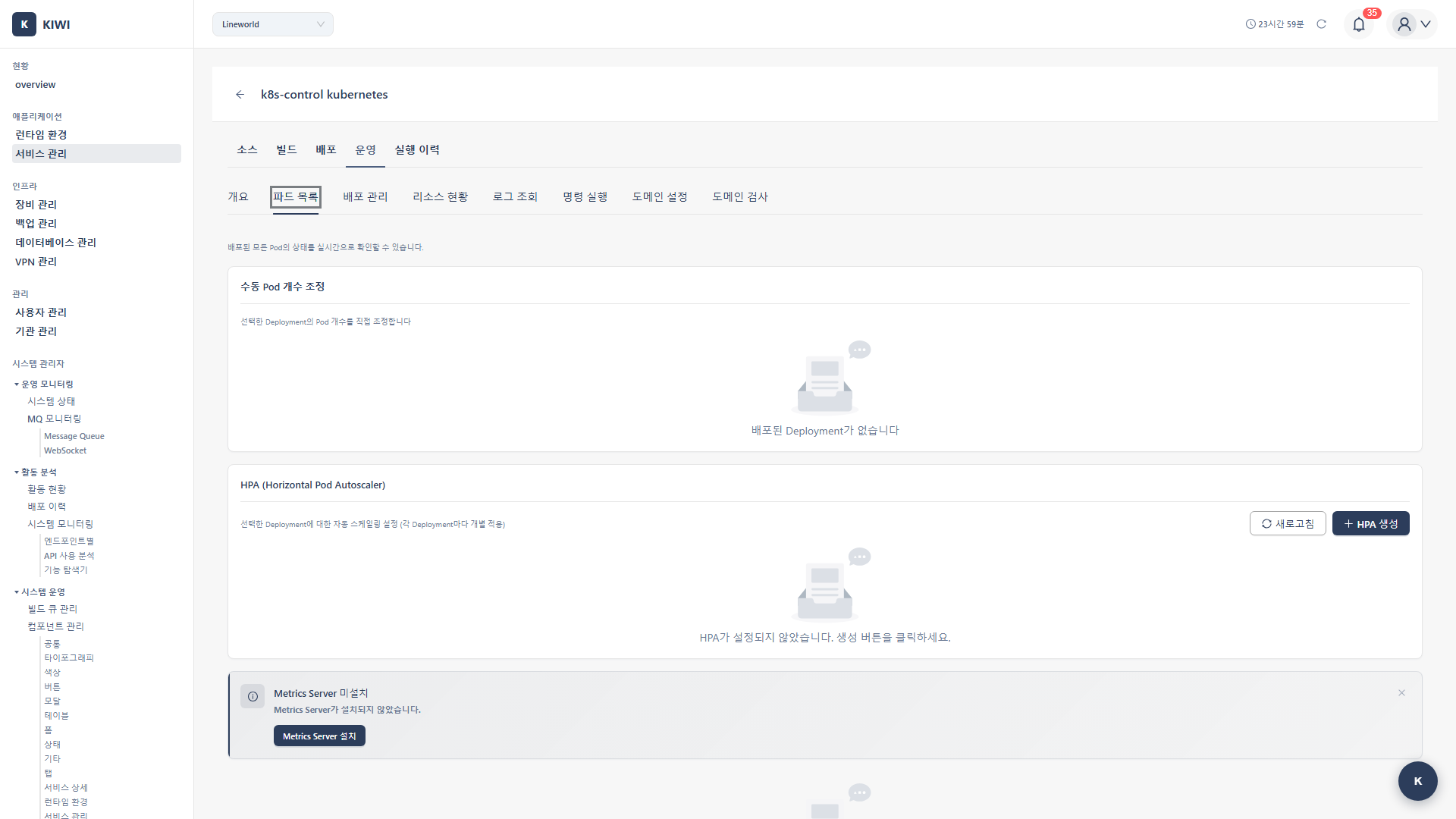
Viewing Pod List
- Operate → Pod List tab
- View the list of currently deployed Pods .
Pod Information Table
- Status: Running, Pending, Failed, etc.
- Pod name: Deployment-XXXXX-XXXXX format
- Creation time: Time the Pod was created .
- Restart count: Number of container restarts .
- CPU/Memory: Resource usage (requires Metrics Server)
- Actions: Logs, delete, etc.
Understanding Pod Status
-
Running (Green check): Pod is running normally. No issues detected.
-
Pending (Yellow spinner): Pod is waiting for scheduling. Common causes include insufficient resources or image pulling in progress.
-
Failed (Red X): Pod has failed. Usually caused by application errors or resource issues.
-
CrashLoopBackOff (Red X): Pod has failed repeatedly. Typically indicates an application startup failure that needs debugging.
-
ImagePullBackOff (Red X): Image pull has failed. Check image path or authentication credentials.
-
Terminating (Gray): Pod is being terminated. Deletion is in progress.
Pod Actions
- View logs: View the logs for this Pod. Navigates to the Logs tab.
- Details: Pod describe information. Check events and resources.
- Delete: Delete the Pod. The Deployment will create a new Pod.
When you delete a Pod managed by a Deployment in Kubernetes, the Deployment automatically creates a new Pod. This achieves the effect of restarting the Pod.
Bulk Delete Pending Pods
When there are multiple Pods waiting for scheduling:
- Click the Bulk Delete Pending Pods button .
- Approve in the confirmation dialog
- All Pending Pods are deleted .
Scaling (Kubernetes)
Manual Scaling
Changing the Scale
- Select a Deployment in the Pod List tab
- Check the current replica count .
- Enter the desired replica count .
- Click the Scale button .
Scale types:
- Scale Up: Increase replicas (respond to increased traffic)
- Scale Down: Decrease replicas (save resources)
- Scale to Zero: Set to 0 (temporary suspension, cost reduction)
Deployment Status
- Replicas: Target replica count .
- Available: Number of available Pods .
- Updated: Number of Pods running the latest version .
HPA (Horizontal Pod Autoscaler)
HPA is a powerful feature that automatically adjusts the number of Pods based on CPU or memory usage. It adds Pods when traffic increases and removes them when it decreases.
Manual scaling takes time and is prone to errors. With HPA configured, you can automatically respond to traffic 24/7.
Creating an HPA
- Navigate to the HPA section in the Pod List tab
- Click the Create HPA button .
- Enter the following settings .
HPA Configuration Guide:
- Min Replicas (Recommended: 2): The minimum number of Pods to always maintain. Recommend 2 or more for high availability.
- Max Replicas (Recommended: 10): The maximum number of Pods that can be scaled. Set considering cluster resources.
- CPU Target (Recommended: 70-80%): Pods are added when usage exceeds this level.
- Memory Target (Recommended: 70-80%): The threshold for memory-based scaling.
- Click the Create button .
HPA requires Metrics Server to be installed on the cluster. Refer to the Metrics Server Installation guide.
How HPA Works
Current CPU 85% → Target 70%
→ Need to increase replicas
→ Automatic Scale Up
→ CPU load is distributed
→ CPU reaches 70%
Viewing and Deleting HPA
- Current replicas: Current Pod count .
- Target replicas: Result of HPA calculation .
- Current CPU/Memory: Actual utilization .
- Target CPU/Memory: Configured target
To delete HPA: Click the Delete button → Switches to manual scaling .
Metrics Server
Metrics Server is required for HPA and resource monitoring.
Checking Metrics Server Status
- Check the Metrics Server Status section .
- Status icons:
- Green: Operating normally
- Yellow: Installing/requires verification
- Red: Not installed/error
Installing Metrics Server
If Metrics Server is not present:
- Click the Install Metrics Server button .
- Installation proceeds (takes 1-2 minutes)
- Check the status .
Docker Container Management
Viewing Container List
- Operate → Container List tab
- View the current container list
Container Information Table
- Name: Container name
- Image: Image in use
- Status: running, exited, paused .
- Ports: Port mapping information .
- Creation time: Container creation time
- Actions: Start/stop/restart/delete
Container Control
- Start (
docker start): Start a stopped container . - Stop (
docker stop): Stop a running container . - Restart (
docker restart): Restart a container . - Remove (
docker rm): Delete a container (must be stopped first)
Control Procedure
- Click the action button in the row of the container to control
- Approve the confirmation dialog (for delete)
- Confirm the operation is complete .
All internal data is lost when a container is deleted. Persistent data must be stored in a volume.
Resource Monitoring (Docker Ops)
View Docker host information in the Docker Ops tab:
- Docker version: Installed Docker version .
- OS information: Host operating system .
- CPU/Memory: Host resource usage
- Container count: Running/total container count .
- Image count: Number of local images .
Real-World Usage Scenarios
Let's look at how to manage Containers in real situations.
Scenario 1: Responding to a Traffic Surge (K8s)
Here's how to respond when users suddenly flood in and the server slows down.
- Check the current status in the Pod List tab
- If CPU/memory usage exceeds 80%, scaling is needed .
- Increase the replica count from 3 to 5
- Click the Scale button .
- Confirm that new Pods are being created .
- Load is distributed and response times improve .
It's a good idea to increase scale ahead of expected traffic surge events.
Scenario 2: Automating with HPA
If manual scaling is tedious, set up HPA.
- Identify services that frequently need manual scaling .
- Click the Create HPA button .
- Set min 2, max 10, CPU target 70%
- Complete creation
- From then on, scaling happens automatically based on traffic changes .
Scenario 3: Restarting a Problematic Pod
Here's how to fix a Pod stuck in CrashLoopBackOff status.
- Discover a Pod in CrashLoopBackOff status .
- Use View Logs to identify the root cause .
- Fix the problem (configuration, code, etc.)
- Delete the Pod (Deployment will create a new one)
- Confirm the new Pod is in normal Running status .
Scenario 4: Rolling Back a Docker Container
When there's a problem with the new version and you need to revert to the previous one.
- Problems occur after deploying a new version .
- Stop the current Container .
- Create a new Container with the previous version's image
- Start the new Container .
- Confirm normal operation .
After rolling back, be sure to identify and fix the root cause of the problem.
Troubleshooting
Kubernetes
- Pod stuck in Pending: Insufficient resources. Add a node or reduce resource requests.
- Scaling not working: No Deployment. Check the Deployment status.
- HPA not working: Metrics Server not present. Install Metrics Server.
Docker
- Start failing: Port conflict. Change the port mapping.
- Remove failing: Container is running. Execute Stop first.
- Cannot connect: Cannot access the server. Check the SSH connection.
Related Guides
- Log Monitoring - Log viewing .
- Shell Access - Command execution .
- Rollback - Restore previous version .