Notification Management
Path: Notification icon (bell) in the top right corner.
KIWI's notification system ensures you don't miss important activities such as organization invitations and membership requests.
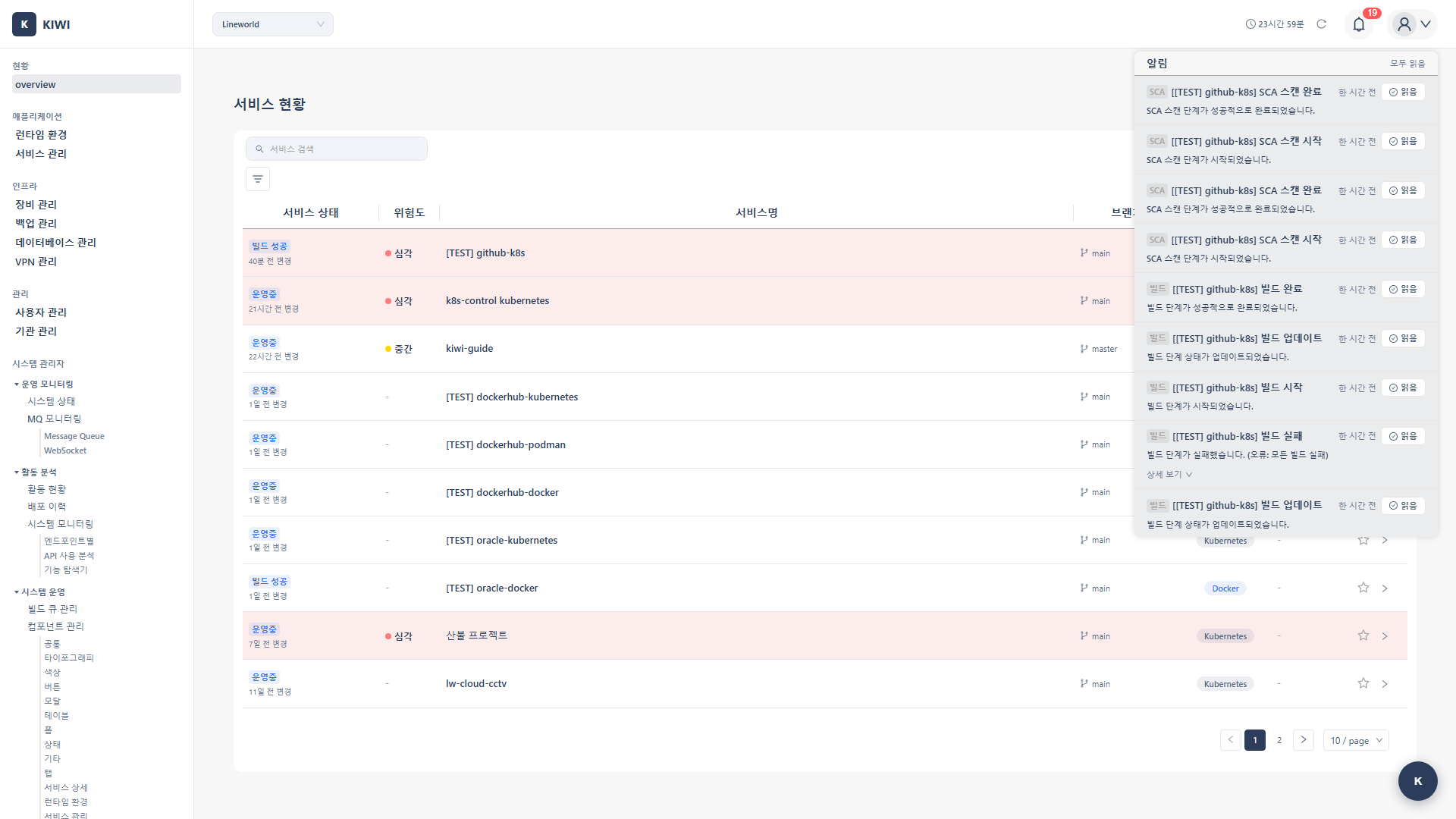
Checking Notifications
Notification Icon
Check notifications through the bell-shaped icon in the top right corner.
- Red Badge: Shows the number of unread notifications.
- Icon Click: Opens the notification panel
Notification List
View recent notifications in the notification panel:
- Notification Title: Main content of the notification.
- Time: When the notification was generated.
- Read Status: Unread notifications are highlighted.
Notification Management
- Mark as Read: Click an individual notification to mark it as read
- Mark All as Read: Click Mark All as Read button to mark all notifications as read
Handling Organization Invitations
When an administrator from another organization invites you, you'll receive a notification.
Accept Invitation
- Check the Organization Invitation notification in the notification panel
- Review the invitation details (organization name, role)
- Click the Accept button.
- You are registered as a member of that organization.
Decline Invitation
- Check the Organization Invitation notification in the notification panel
- Click the Decline button.
- The invitation is declined and the notification is cleared.
Invitations automatically expire after a certain period. Please respond as soon as possible.
Handling Membership Requests
If you are an organization administrator, you can process join requests from other users.
Approve Request
- Check the Membership Request notification in the notification panel
- Review the requester's information (name, email)
- Click the Approve button.
- The requester is registered as an organization member.
Reject Request
- Check the Membership Request notification in the notification panel
- Click the Reject button.
- The request is rejected and the requester is notified.
Permissions for approved members can be adjusted on the [Permission Management] page.
Requesting to Join an Organization
You can request to join a specific organization without an administrator invitation.
How to Request
- Find the organization you want to join in [Organization Explorer] or related pages.
- Click the Request to Join button.
- Enter a reason for the request (optional)
- Click the Submit button.
Check Request Status
- Pending: Waiting for administrator approval.
- Approved: Registration as organization member complete.
- Rejected: Request was rejected.
Request processing requires administrator review. Contact the organization administrator directly if urgent.
Notification Types
Types of notifications sent by KIWI:
Organization Related
- Organization Invitation: When you are invited to an organization.
- Invitation Accept/Reject Result: Result of sent invitations.
- Membership Request: When someone requests to join the organization (for administrators)
- Join Approval/Rejection: Result of your join requests.
Pipeline Notifications
- Build/Deploy Started: When a build or deployment has started.
- Build/Deploy Completed: When a build or deployment has completed successfully.
- Build/Deploy Failed: When a build or deployment has failed (includes error message)
- Security Scan Results: When SAST, SCA, or DAST scans are completed.
Build/deploy failure notifications include error messages that you can expand to see details. Status is shown for each pipeline stage (Source, SAST, Build, SCA, Deploy, Operate, DAST).
System Notifications
- Permission Change: When your role or permissions are changed.
- Organization Settings Change: When important organization settings are changed.
Related Guides
- User Profile - Profile and account management.
- Permission Management - Role and permission settings.